Mapping No.8 - Posted outgoing sales invoice
When creating an outgoing sales invoice, the application scenario of NAV's Therefore™ interface ensures that the corresponding NAV document is saved as a Therefore™ document in the Therefore™ archive. The corresponding settings for this are shown below.
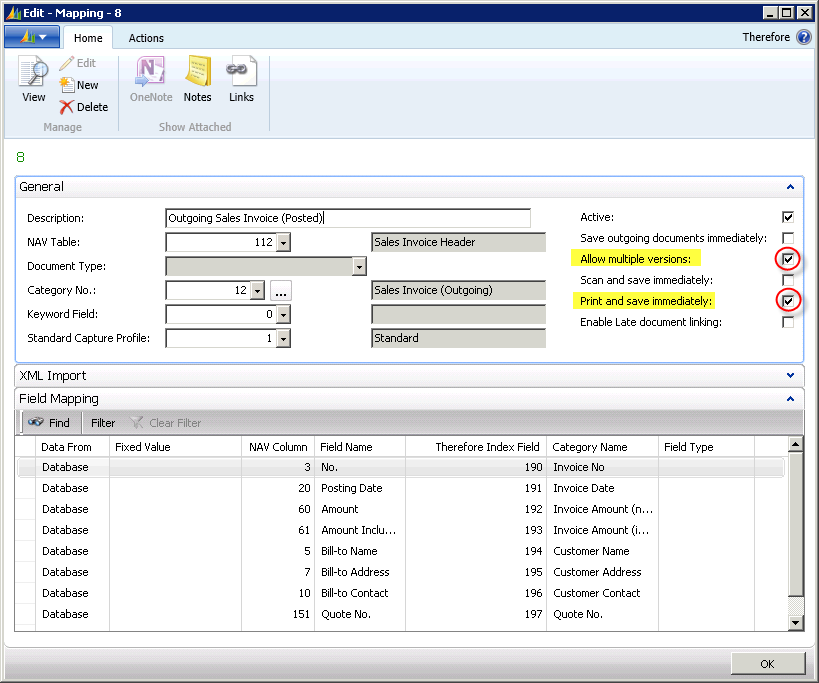
All field allocations are taken from NAV table 112 (SalesInvoice Header) and are allocated to the corresponding index data fields of the Therefore's SalesInvoice(Outgoing) category.

|
Note:
|
The transfer is from NAV into the Therefore™ archive. The application scenario below shows saving and booking of an outgoing sales invoice.
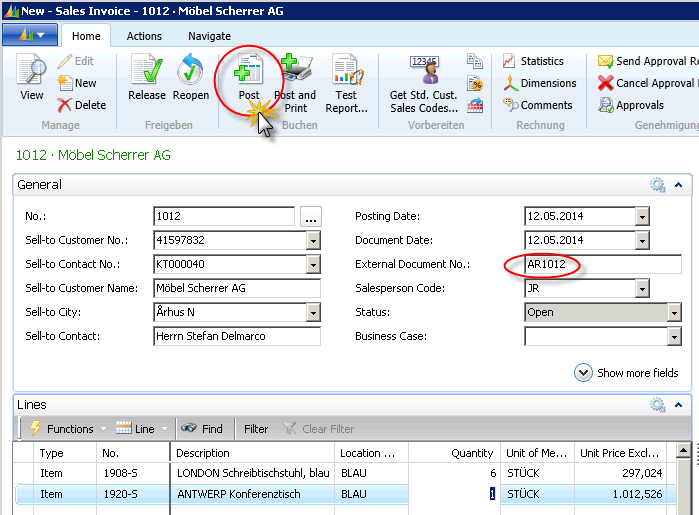
The booking process in NAV archives a booked sales invoice as well as a booked sales delivery (booked documents). These documents ( if Save outgoing documents immediately is deactivated) are not immediately transferred to the Therefore™ archive, but can then either be processed at a time when NAS is activated or, as shown below, be processed manually from the processing journal (queue).
Processing Journal - Processing the Queue
The easiest way to manually transfer all queuing NAV-documents into the Therefore™ archive is shown in the figure below.
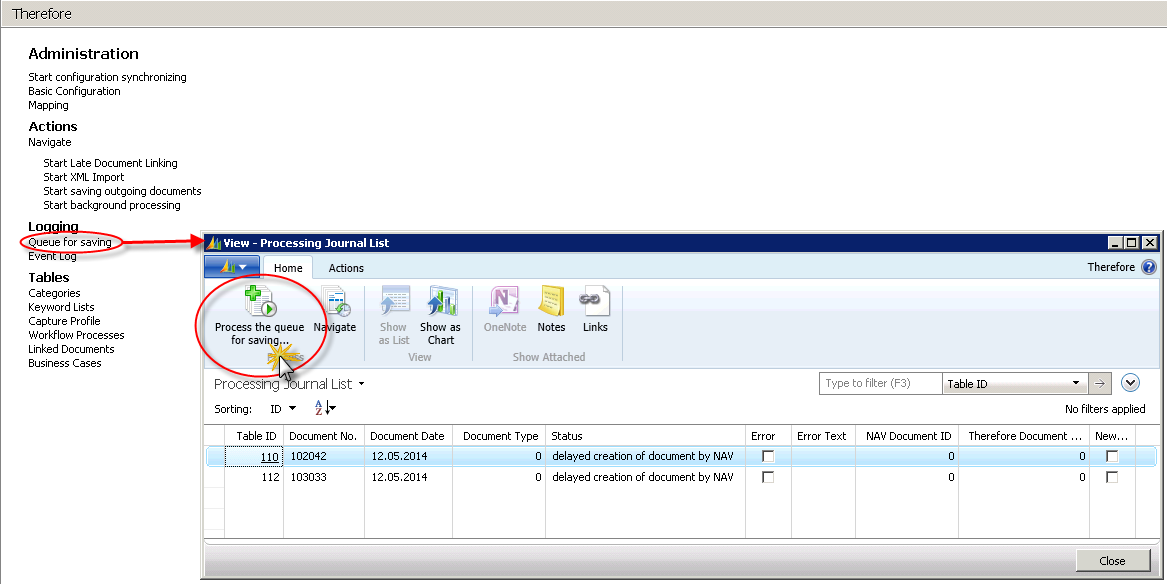
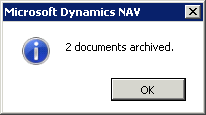
The processing journal list is opened via the Therefore™ main menu (Departments)>Logging>Queue for saving. This list shows all the NAV documents that have been internally generated with NAV during the course of the work process. In this case, a posted sales delivery and a posted sales invoice. By clicking the button Process the queue for saving, these documents, in accordance with the mapping structure, are archived in Therefore™ as PDFs and deleted from the queue. The following message box should appear:
Show Archived Documents
To show archived documents or to directly show the respective document in the Therefore™ Viewer, you can run the Linked Documents function from the Therefore™ main menu in NAV (Departments).
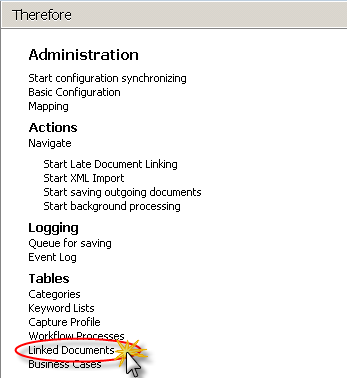
Opening this displays the list of archived documents, as shown below.
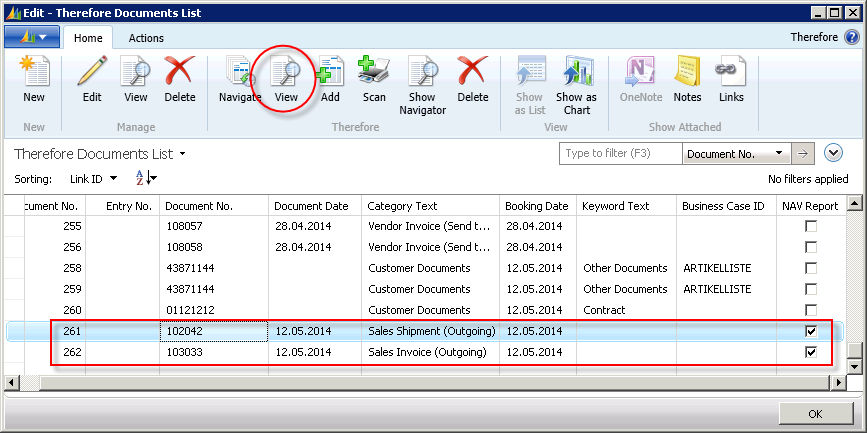
By selecting the respective line and using the View button under the Therefore™ functions, the corresponding document will be opened in the Therefore™ Viewer.
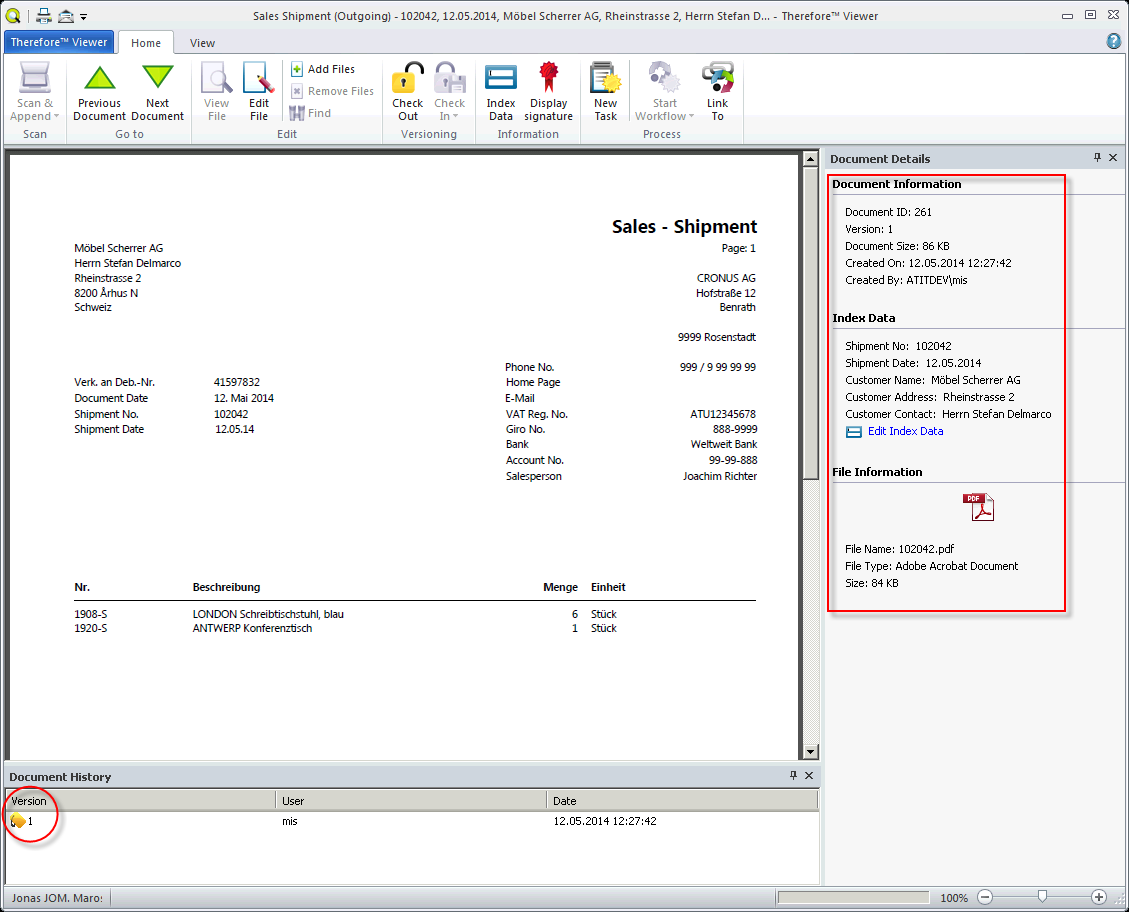
If the document is to be printed out once more on the NAV side, for example, if any changes have been made, then an additional version is saved to the Therefore™ archive after processing the queue or after completion of the NAS routine. These different versions can be called up in the Therefore™ Viewer under the pane Document History.