Mapping No.6 - Customers
The area Therefore™ has been added to the Actions tab on the customer card. This function area enables communication with the Therefore™ archive and allows relevant customer- related documents to be saved.
View
Shows the Therefore™ documents archived for this customer.
Add
Enables new Therefore™ documents to be added to the selected customer.
Scan
Scans and adds a new document.
Show Navigator
Opens the search window of the Therefore™ Navigator for the category Customer Documents.
Mapping between NAV and Therefore™ for customers is shown in the mapping card in the figure below.
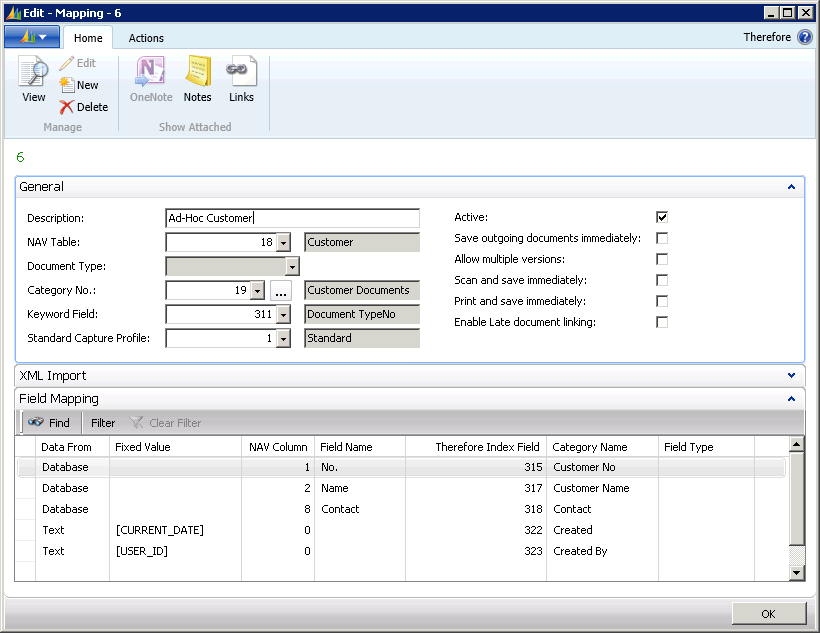
When adding a new Therefore™ document to a customer from NAV, the data entries of the fields: No., Name and Contact from NAV table 18 (Customer) are imported into the Therefore™ index fields (field allocation – database). In addition, text macros are used (Text: [CURRENT_DATE], [USER_ID]) to attribute the current date and the current user as Therefore™ index data. These field allocations can be expanded, but the respective data fields need to be present in Therefore™ and/or NAV.
Customer: Adding documents
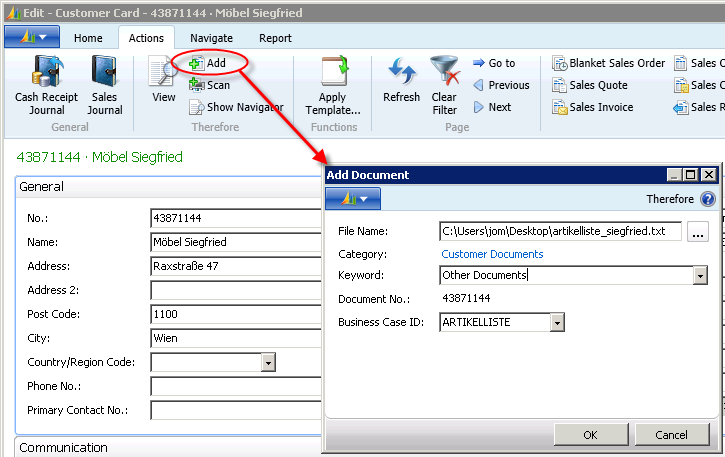
The process of adding a document to the Therefore™ Archive via the customer card is shown in the figure below.
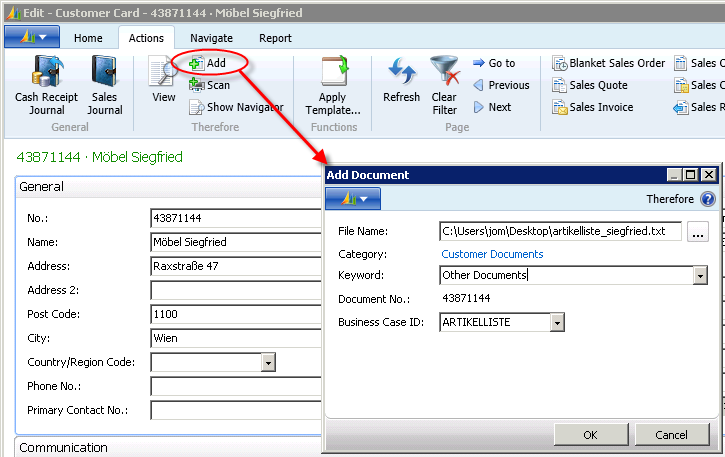
The Therefore™ – Add button opens a window in which the document to be archived can be selected. Alternatively, the document can be scanned and made available as a PDF. Optionally, one of the Therefore™ categories can be allocated to a keyword and/or a business transaction ID. The business transaction ID enables targeted searching through the Navigate function for entries concerning this business transaction. See:
Confirming will open the Therefore™ Viewer. As shown below, the selected file is saved in the Therefore™ archive, and mapping of index data taken from NAV is performed.
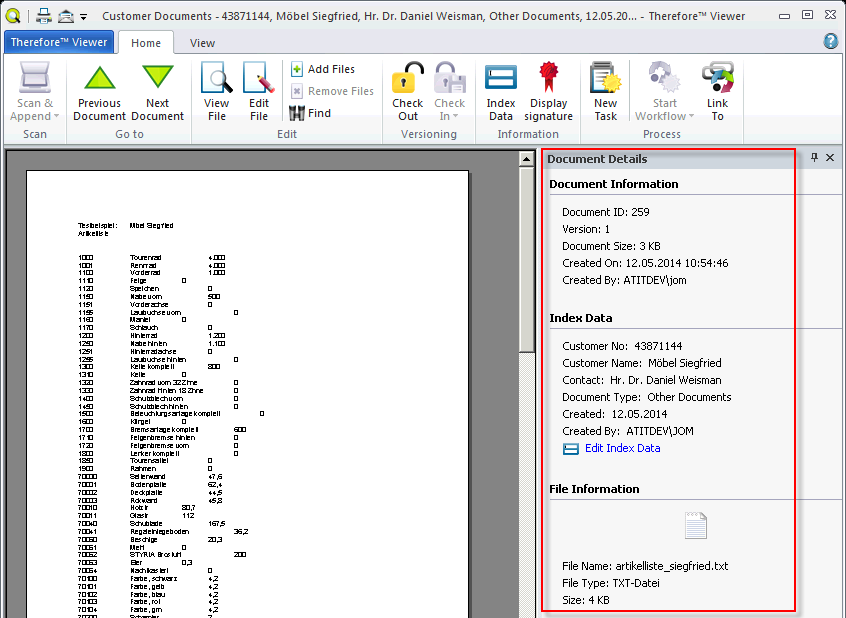
Viewing Archived Documents
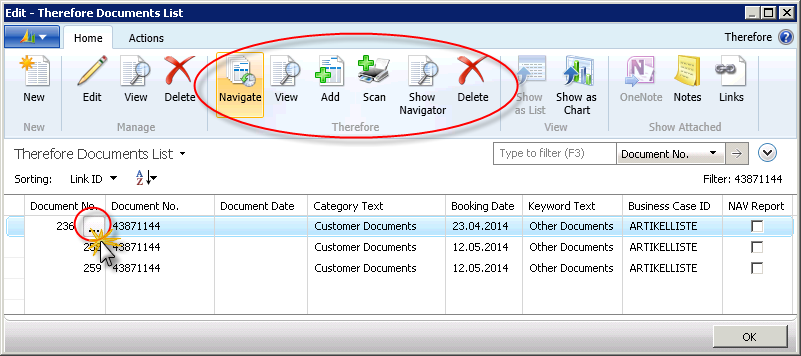
Conversely, the archived document is also available in NAV. A list of documents archived to a customer number in the customer card can be shown via Actions button: View.
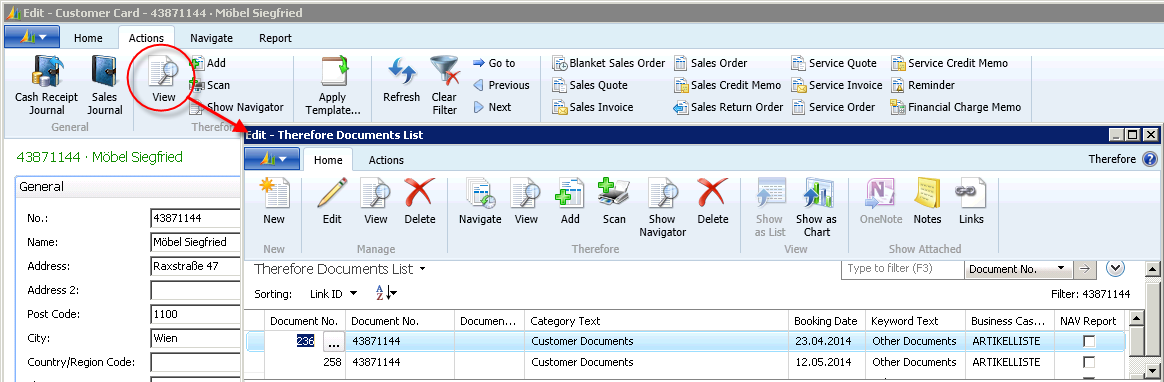
In this list, additional documents can be added, scanned, and saved to the Therefore™ archive, or also deleted. To view the selected document either click on the On-Assist-Button (button with 3 dots) next to the document number or use the View button. In both cases, the respective document will open (including versions) in the Therefore™ Viewer.