Edit Layout
In the Therefore™ Web Client it is possible to edit the layout of how index data fields are displayed when viewing documents in categories and cases. Accessing the layout editor is done by clicking 'System Settings' in the account menu. While in the 'Edit Layout' tab, browse the repository and select which category or case should be edited. Double clicking a case or category, or clicking 'Edit layout' will open the layout edit page.
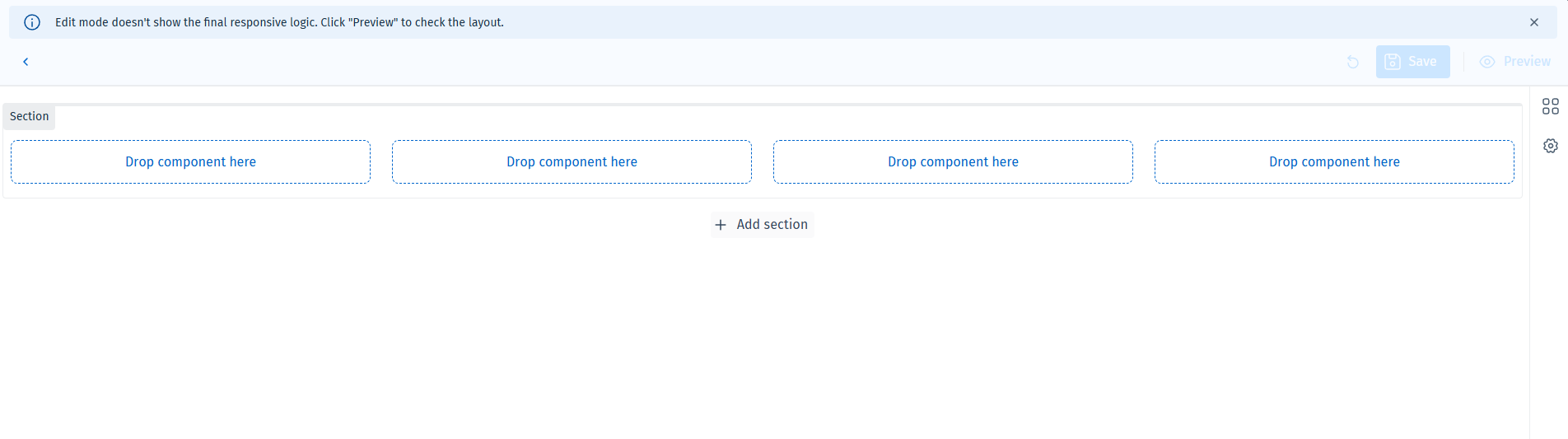
Editor Tools
|
|
Open Components
Opens a list of all available index data fields for this case or category. Users can search or use the filter to narrow down the selection of available fields. Fields that have already been added to the layout appear under 'Visible' while fields which remain to be added appear under 'Hidden'. |
|
|
Open Settings
Opens a settings tab where users can set the window width on which the layout will automatically be stacked vertically into a single column. The web client will attempt to display the custom layout at any widths above the limit. |
|
|
Open Section Configuration
Opens a specific section's configuration tab. Here users may select how many columns should compose the section, as well as manage the individual size of each column. Additionally, sections may be duplicated, moved up or down, and deleted. |


Top Bar Actions
|
|
Revert changes
Undoes all customization applied to the layout and reverts it to the last saved layout. |
|
|
Save Layout
Saves the layout and activates it for all users. This prompts the user with a dialog to confirm the changes and inform if any mandatory fields have not been included. |
|
|
Preview
Opens a preview of the layout with the current changes applied to it. |


Editing the Layout
Editing the index data layout is done by adding sections and configuring the number of columns in them. For each column there will be a 'Drop component here' zone where users can drop components that are dragged directly from the component list. It is not necessary to have a component for every column.

|
Note: Increasing the number of columns per section reduces the space allotted to each component. In case this space becomes too small to display a field, it will be highlighted to the administrator. |
Once the desired fields have been added to the layout and arranged as intended, click save to activate the layout for all users.