Creating Therefore™ Portal Users
Each external user accessing the Therefore™ Portal requires their own Portal User account. Portal User accounts are created and managed in the Therefore™ Solution Designer. Portal user accounts are not the same as Therefore™ internal users, and only accounts listed in the Portal Users list can access the Therefore™ Portal.
Creating a Therefore™ Portal User
-
In the Therefore™ Solution Designer, expand the Portal node and right-click 'Users'. Select 'New User'.
-
The User Properties dialog will open. In the General tab, enter a user name, display name and the email address of the user. If the account should not be immediately activated, check the 'Account is disabled' box. This can be later undone by an administrator. Check the 'User must change password at next login' if necessary.
-
The 'Search' tab lists all searches available in the Portal. Select the searches which should be available to this particular user.
-
Select the search conditions for this user by clicking on the Browse button under Conditions. The index data dialog will appear, allowing you restrict the search conditions for this user. In the screenshot below, the user is limited to viewing invoices from their company only (Moya River Trading). Additionally, only invoices between February 1st and February 28th 2018 will be visible.
When the conditions have been set, click 'Execute'.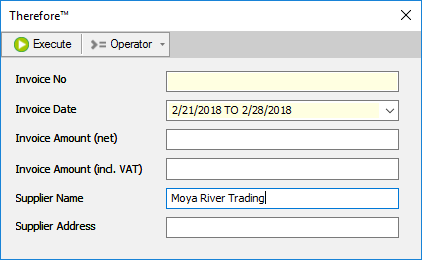
-
In the Upload tab, the user can be given the option to upload documents to the Portal. Select which categories the user can upload documents to. Pre-filled values for certain index data fields can also be set for the user.
-
Clicking OK will bring up the 'Set Password' dialog. If the 'User must change password at next login' was checked earlier, the user will only use this password during the first login.
-
All Therefore™ Portal users can be listed by clicking on Users under the Portal object. Right-clicking on a user allows further options to be selected.
Creating Multiple Users
In cases where a large number of Portal users should be created at once, the process can be automated by synchronizing with an external database. This can be done in the Therefore™ database by using SQL statements and getting values from other tables.
New entries will be inserted into the TheUserSync table in the Therefore™ database. The server will then automatically synchronize changes every 10 minutes.

|
Each row in the TheUserSync table is one search for one user. To have multiple searches for a single user, multiple rows must be added using the same values for the Email and UserName columns. |
Creating multiple Portal Users at the same time from an external database
-
In order to create Therefore™ Portal users from an external database, the database or table must provide at least the e-mail address of the user and a user name (this can be the same as the e-mail if desired).
-
Execute an SQL statement to insert new entries into the columns of the Therefore™ database's TheUserSync table. See the following script as an example which draws values from the table "CustomerData".
CopyINSERT INTO TheUserSync (Email, QueryNo, UserName, UserType, UserPwd, OneTimePwd, ConditionXML, SyncState)
SELECT Email, 68, Email, 4, NULL, 1, '<Conds><C><FieldNo>1020</FieldNo><Filter>' + CustomerID + '</Filter></C></Conds>', 1
FROM CustomerDataColumn Description/Notes Email The e-mail address of the user, used to uniquely identify each Portal user. This field is mandatory. QueryNo The Search ID of the search assigned to this user. The Search ID can be found either in the TheQuery table or in the Therefore™ Portal Configuration dialog. UserName The user name of the Portal user. If you add multiple searches for one user, the user name must be the same for each entry. UserType Always set to this to 4 for Portal users. Anything not set to 4 will be ignored. UserPwd The cleartext password for the user. If this is set to NULL, a password will be generated for the user by the server. The generated password is always a one-time password; the user must change it at the next login. OneTimePwd The only valid values are 0 or 1.
0: The user's password is provided in the column UserPwd.
1: The user's password is provided in the column UserPwd but it must be changed at the next login.This setting has no effect when the UserPwd is set to NULL.
ConditionXML The XML string used to restrict the viewing conditions for this user and search. See step 3 below for more details on this value. SyncState The current synchronization state for each entry. Valid values are 0-4.
0: The entry is synched, no action required by the server. Created users are set to this state by the server. Do not create new entries with 0 or the user will not be created.
1: The entry is not yet synched, and is marked for synchronization. When creating or making changes to users, set this to 1 so the server will synchronize them.
2: This entry is marked for deletion. The entry and corresponding Portal user will be deleted. This is the recommended method for deleting Portal users. Do not delete entries from the table manually. Simply set the SyncState to 2, and they will be automatically deleted the next time the synchronization runs.
3: An error occurred when adding a new entry or changing an existing one. The previous state was 1. See the event log for more details. Once the issue has been resolved, set the state back to 1 to re-attempt the synchronization.
4: An error occurred when deleting an existing entry. The previous state was 2. See the Event Viewer for more details. Once the issue has been resolved, set the state back to 2 to re-attempt the deletion. -
Setting the ConditionXML correctly is essential to restrict each user's viewing permissions. The following procedure is recommended:
-
Create a sample Portal user in the Therefore™ Solution Designer.
-
Set the appropriate condition for this user.
-
Go into the Therefore™ database and access the table ThePortalAccess.
-
Copy the ConditionXML from the ConditionXML column for the sample user. You will use this as a template.
-
Modify this XML string for each user and apply the correct condition. Change the value between the <Filter> tags.
-
Apply the changed ConditionXML to the TheUserSync table.
-
|
|
It is very important to set these conditions correctly in order to restrict the types of documents each user is allowed to view. If these conditions are not set properly, a user may be able to view other users' documents or unauthorized confidential information. |
Creating multiple Portal users with the API/WebAPI
It is possible to create portal users via API or WebAPI, using a similar mechanism to what is described above.
Usage via API
In the API you will need to use the 'ThePortalUserSync' class. It has similar properties as the 'TheUserSync' DB table mentioned in the section above.
This sample displays how to add one portal search for one user:
// adding one portal search for one user
ThePortalUserSync userSync = new ThePortalUserSync();
userSync.Email = "apiPortal@therefore.net";
userSync.QueryNo = 363;
userSync.UserName = "apiPortal@therefore.net";
userSync.UserPwd = string.Empty;  // generates a password for the user
// add conditions
TheCondition condition = new TheCondition();
condition.FieldNo = 123;
condition.Condition = "some condition";
userSync.Conditions.Add(condition);
userSync.SavePortalUser(server);d
To add multiple searches for one user you will need to specify the same Email/Username and specify a different QueryNo.
The following sample can be used to add one upload for a portal user.
//adding one portal upload for one user
ThePortalUserSync userSyncUpload = new ThePortalUserSync();
userSyncUpload.Email = "apiPortal@therefore.net";
userSyncUpload.CtgryNo = 68;
userSyncUpload.UserName = "apiPortal@therefore.net";
userSyncUpload.UserPwd = string.Empty;
//set pre-defined values for index data fields, for this portal user
userSyncUpload.IndexData.SetCategory(68, server);
userSyncUpload.IndexData.SetValueByFieldID("Text", "some predefined value");
userSyncUpload.SavePortalUser(server);
Usage via WebAPI
The WebAPI call will work the same way. Additional documentation for this can be found in our WebAPI documentation:
https://therefore.net/help/2026/en-us/AR/SDK/WebAPI/the_webapi_operation_saveportaluser.html
Sample call for adding portal search to a user:
{
    "PortalUser": {
      "Conditions": [
           {
               "FieldNoOrName" : "1019",
               "Condition" : "1"
           }
       ],
      "Email": "myEmail@test.com",
      "IndexDataItems":[],
      "QueryNo": "163",
      "UserName": "test6",
      "UserPwd": "Abcd1234"
   }
}

|
Note: Neither API or WebAPI portal user creation is instant. It will take up to 10 minutes until the portal user has been created. |
Notifying Users that their accounts have been created
-
Users whose accounts have been created by synchronization must first activate their accounts to receive their password. An administrator must send a notification to each user with their user name and a link to the Therefore™ Portal activation page. The link is:
http://<tenantname>.thereforeonline.com/Portal/PortalActivation.aspx -
Users need to enter their user name and click Activate to receive their generated password per e-mail, which they can then use to log in to the Therefore™ Portal.