Using Webhooks
The below example demonstrates how webhooks can be utilized to update the signer status of a document in a scenario where multiple signatures need to be obtained. This configuration updates the signer status of a document in real time, Signer Status being a column in a table field.
For this specific example, an eSignature provider and a Send for Signing workflow must be configured in addition to the webhook configuration.
For detailed descriptions of webhook settings please refer to the following page:
Webhook Signature Configuration
In the Therefore™ Solution Designer, go to the Integrations node, right-click on the Webhooks node and select 'New Webhook'.
Since only signed webhooks can update information, it is necessary to configure the signature under 'HMAC signing'. The Shared secret key and Signature header need to be obtained from the third-party provider's documentation and entered into the respective fields. Unless needed for added security, Timestamp header and IP whitelist can be left empty.
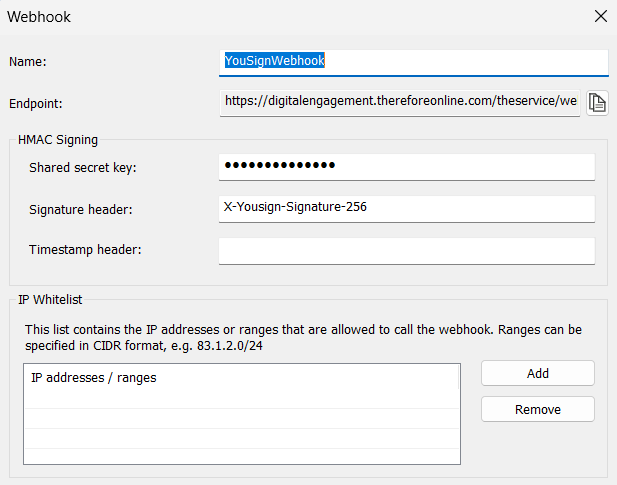
Copy the Endpoint by using the 'Copy to Clipboard' button next to it and share it with the third-party provider while configuring the webhook on their side.
Webhook Action Configuration
Next, add an Action depending on what should happen when information is received through the webhook. In this case, the signer status should be updated from Pending to Signed so the selected action is 'Update Index Data'.
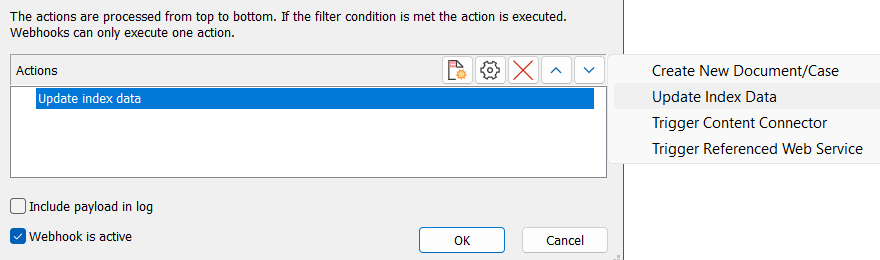
It is necessary to configure the relevant tabs depending on what should happen if information is received through the webhook.
Filter tab
In order to complete this step, it is necessary to study the third-party provider's documentation to know what the event is called in the payload, and what possible values it can have. For most providers, it is possible to configure the webhook to send only information in regards to specific events.
In this case, the webhook is set on the provider's side to send an update every time a required person signs a document. From their documentation, it is known that the Json path in the payload is 'event_name' and the value we want to filter for is 'signer.done'. For that reason, the following values are entered into the respective columns:
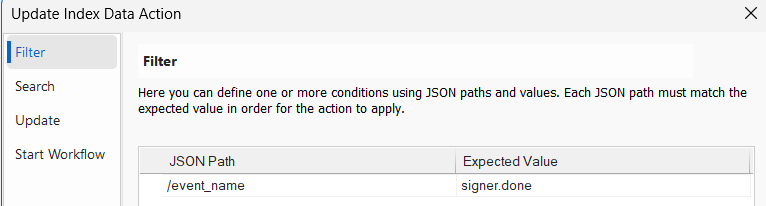
Json Path:
/event_name
Expected Value:
signer.done
Search tab
In this tab, a search for the Therefore™ document that should be updated is configured. By loading a sample payload from the provider, it is possible to select the unique value as an assignment from a list. In this case, the search is filtering for the unique provider document ID that will match an existing document.
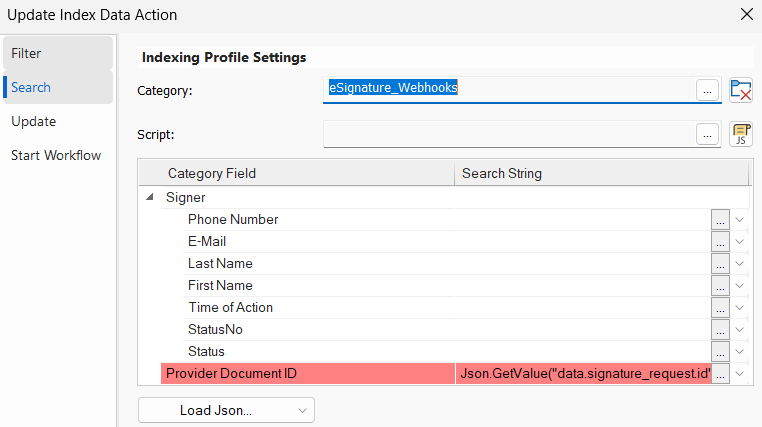
Search String column value:
Json.GetValue("data.signature_request.id")
Update tab
In this tab, it is possible to set which values from the webhook payload existing index data fields should be updated with. It is possible to do this either with a script or with assignments.
In this configuration, the script shown below is used. There are multiple signers for a document that are identified by their email address. If an email address matches, the table field column 'Signer Status' is updated to the value 'Signed'.
var status = SourceIndexData.GetField("Status_Text");
var email = SourceIndexData.GetField("Email");
var email_update = Json.GetValue("data.signer.info.email")

for(var j = 0; j < email.length; j++)
{
    if(email[j] == email_update)
    {
        status[j] = "Signed";
    }
}

IndexData.SetField("Status_Text", status);
Now, the signer status is updated to 'Signed' in real time each time the document is signed.