Input Folders
Define folders which should be monitored by the Therefore™ Content Connector, and how the incoming documents should be processed. Filters can be used to apply different profiles to files within a specified folder. The Therefore™ Content Connector steps through the list of profiles in the specified order and processes each file with the first matching profile.

|
Note:
|
A right-click on the object opens a context menu containing the following options.
New
Opens the Input Folder dialog from which a new input folder can be defined.
Export
Export input folder profiles.
Input Folder Dialog
Folder type
Select either Local Network or a cloud storage. Selecting to create a new cloud storage opens a dialog in which the connection settings can be specified.
Input folder
Specify the location for the new input folder.
Name
A name for the input folder must be specified.
Jobs
Jobs can be added, removed and the order can be moved up and down. The system will use the first matching job in the list. For more information, please see the reference:
Move Files after Processing
Processed
If the option Delete files after successful processing is not checked, then successfully processed files will be moved to this folder.
Delete files after successful processing
If this box is checked, the data file will be deleted once processing has been successfully completed.
Delete referenced files after successful processing
If this box is checked, the referenced files are deleted once processing has been successfully completed.
Faulty
A folder where all faulty files will be moved needs to be specified.
Polling Interval
This setting determines how often the service will check for new files. By default it is set to 10 minutes.
|
|
Note: For NTFS folders Therefore™ is notified when a new file comes in and processes it immediately. Consequently, polling time is ignored. |
Do not process files without a matching profile
If no profile matches the file, the file will be ignored.
Do not process files smaller than __ bytes
If the file size is smaller than the specified size (default value is 0), it will be ignored. Some applications may create a 0 size file as a flag - setting this option prevents Therefore™ Content Connector moving these flags to the faulty folder.
Disable processing
Stop processing for this folder.
FTP Input Folder
For Therefore™ Online tenants, the input folder must be configured by using an FTP. Below are the steps required to configure this.
-
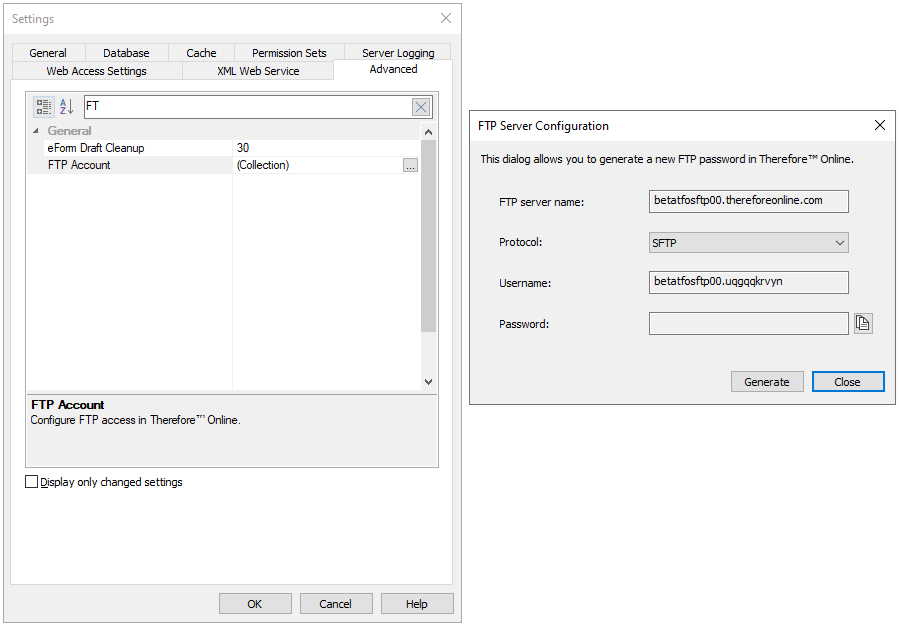
Acquire the Therefore™ FTP credentials for the tenant. This is done in the Advanced Settings tab of the Therefore™ Solution Designer. The FTP credentials are accessed by clicking the '...' button on the 'FTP Account' item under the general tab.
-
The credentials will be required by a third party FTP application in order to connect to the Therefore™ Content Connector's input folder. When entering these credentials, note that the FTP Server Name can be referred to as the '"Host' by the FTP application.
-
Once the connection has been established, it will be possible to create the desired folder structure within the Therefore™ Content Connector's input folder.
Note:
Besides the input folder, it will be necessary to have a processed (where files go after being processed by the Therefore™ Content Connector) and a faulty (where files go in case of an error while processing) folder to fully configure an input folder.
-
Returning to the Therefore™ Solution Designer, right-click 'Input Folders' under the Therefore™ Content Connector node and select 'New'. This will open the input folder configuration dialog.
-
Enter the folder path for the input, processed and faulty folders. This path will have a similar structure to the following:
/Content Connector Sources/<folder name>/
Note:
The folder path for any of these folders does not require any further prefixes or parent locations beyond the initial empty directory for the FTP input folder.
-
Once the rest of the settings have been configured and a job with an indexing profile has been selected, click OK to save the new input folder. Uploading documents to the designated input folder via FTP will start the job.