Recommended Mapping
The mappings can be configured individually as required by each company. The following mappings should act as a guideline and recommendation.
Customer Ad-Hoc
BC Table: Customer (18)
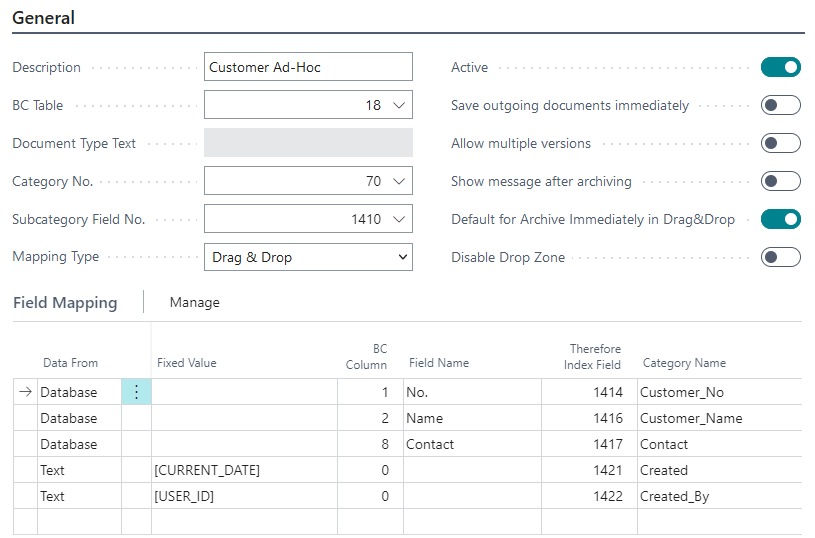
| Setting | Configuration | Setting | Configuration |
|---|---|---|---|
| Description | Customer Ad-Hoc | Active | On |
| BC Table | 18 | Save outgoing documents immediately | Off |
| Document Type Text | N/A | Allow multiple versions | Off |
| Category No. | 70 | Show message after archiving | Off |
| Subcategory Field No. | 1410 | Default for archive immediately in Drag&Drop | On |
| Mapping Type | Drag & Drop | Disable Drop Zone | Off |
-
The Therefore™ category has a Document-Type keyword field configured as a sub-category to easily distinguish the type of the document.
-
The macro [CURRENT_DATE] is used to insert the current date when saving a new document.
-
The macro [USER_ID] will insert the name of the user currently logged into Therefore™ through the Connector.
-
All options except for Active and Default for Archive Immediately in Drag&Drop are disabled and no reports are configured, as this mapping is just used for Ad-Hoc saving of documents on the customer card.
Vendor Ad-Hoc
BC Table: Vendor (23)
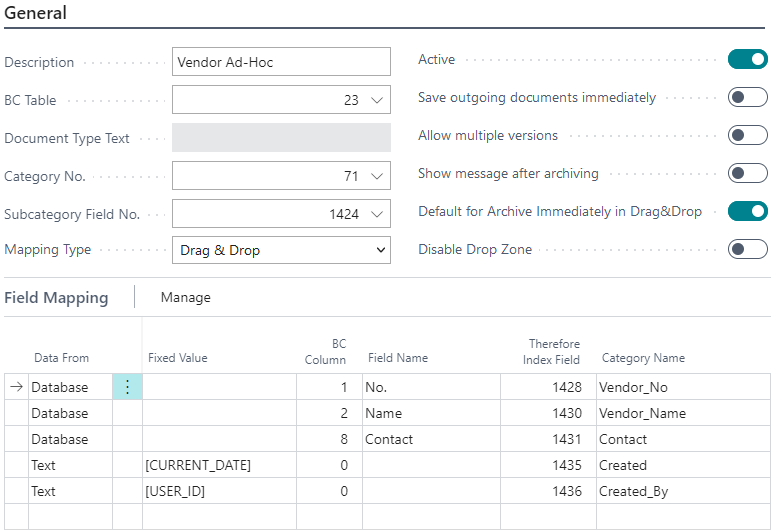
| Setting | Configuration | Setting | Configuration |
|---|---|---|---|
| Description | Vendor Ad-Hoc | Active | On |
| BC Table | 23 | Save outgoing documents immediately | Off |
| Document Type Text | N/A | Allow multiple versions | Off |
| Category No. | 71 | Show message after archiving | Off |
| Subcategory Field No. | 1424 | Default for archive immediately in Drag&Drop | On |
| Mapping Type | Drag & Drop | Disable Drop Zone | Off |
-
The Therefore™ Category has a Document-Type keyword field configured a as sub-category to easily distinguish the type of the document.
-
The macro [CURRENT_DATE] is used to insert the current date when saving a new document.
-
The macro [USER_ID] will insert the name of the user currently logged into Therefore™ through the Connector.
-
All options except for Active and Default for Archive Immediately in Drag&Drop are disabled and no reports are configured since this mapping is used for ad-hoc saving of documents on the vendor card only.
Outgoing Sales Order
BC Table: Sales Header (36)
Report: Sales - Confirmation (1305)
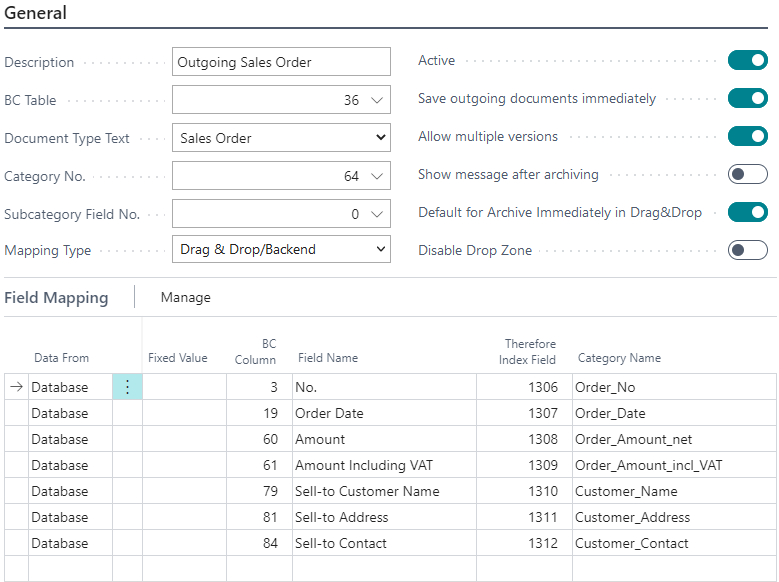
| Setting | Configuration | Setting | Configuration |
|---|---|---|---|
| Description | Outgoing Sales Order | Active | On |
| BC Table | 36 | Save outgoing documents immediately | On |
| Document Type Text | Sales Order | Allow multiple versions | On |
| Category No. | 64 | Show message after archiving | Off |
| Subcategory Field No. | 0 | Default for archive immediately in Drag&Drop | On |
| Mapping Type | Drag & Drop/Backend | Disable Drop Zone | Off |
-
This mapping will be processed a Sales Order is printed and the generated report will be saved to Therefore™.
-
Posting a Sales Order will make it a posted Sales Invoice which would be handled by a different mapping. A posted Sales Invoice will inherit all Therefore™ documents from the Sales Order.
-
The option Save outgoing documents immediately needs to be activated since the Sales Order might no longer be there later due to posting.
-
The option Allow multiple versions avoids the creation of multiple documents in Therefore™ when the Sales Order needs to be printed again after a change.
-
The Mapping Type will control if the Connector will be shown or if it will save the created documents in the background only.
Outgoing Sales Quotes
BC Table: Sales Header (36)
Report: Sales - Quote (1304)
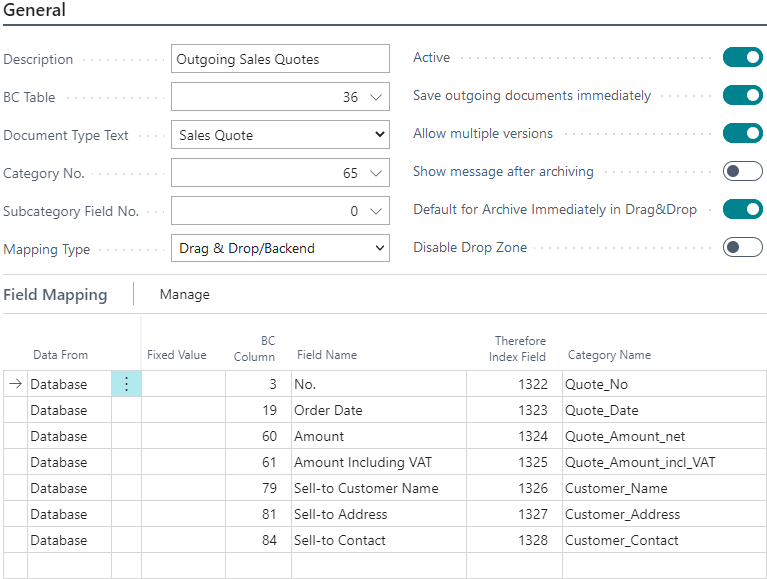
| Setting | Configuration | Setting | Configuration |
|---|---|---|---|
| Description | Outgoing Sales Quotes | Active | On |
| BC Table | 36 | Save outgoing documents immediately | On |
| Document Type Text | Sales Quote | Allow multiple versions | On |
| Category No. | 65 | Show message after archiving | Off |
| Subcategory Field No. | 0 | Default for archive immediately in Drag&Drop | On |
| Mapping Type | Drag & Drop/Backend | Disable Drop Zone | Off |
-
This mapping is processed when the Sales Quote is printed and the generated report will be saved to Therefore™.
-
Converting a Sales Order out of the Sales Quote will not inherit any Therefore™ documents associated to it.
-
The documents will remain in Therefore™ but they will not be shown in the Drop Zone on the Sales Order.
-
The option Save outgoing documents immediately needs to be activated, as the Sales Quotes might no longer be there later (due to converting it to a Sales Order).
-
The option Allow multiple versions avoids creation of multiple documents in Therefore™ when the Sales Quote needs to be printed again after a change.
-
The Mapping Type will control if the Connector will be shown or if it will save the created documents in the background only.
Outgoing Sales Invoices (Posted)
BC Table: Sales Invoice Header (112)
Report: Sales - Invoice (1306)
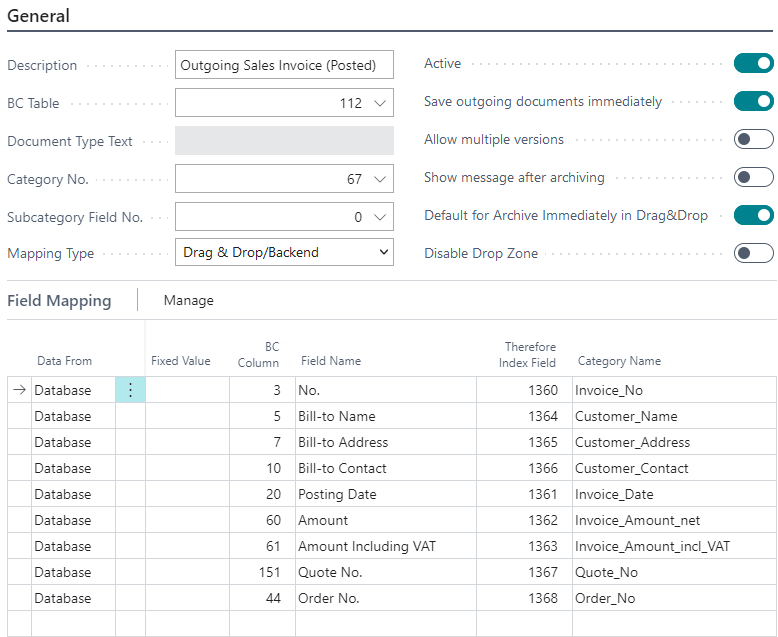
| Setting | Configuration | Setting | Configuration |
|---|---|---|---|
| Description | Outgoing Sales (Posted) | Active | Yes |
| BC Table | 112 | Save outgoing documents immediately | Yes |
| Document Type Text | N/A | Allow multiple versions | No |
| Category No. | 67 | Show message after archiving | No |
| Subcategory Field No. | 0 | Default for archive immediately in Drag&Drop | Yes |
| Mapping Type | Drag & Drop/Backend | Disable Drop Zone | No |
-
This mapping is processed when a Sales Invoice is posted and the generated report will be saved to Therefore™.
-
The option Save outgoing documents immediately can be disabled to speed up posting. The report will then be generated and saved to Therefore™ by the NAS Job Queue as a background task.
Outgoing Sales Shipment (Posted)
BC Table: Sales Shipment Header (110)
Report: Sales - Shipment (208)
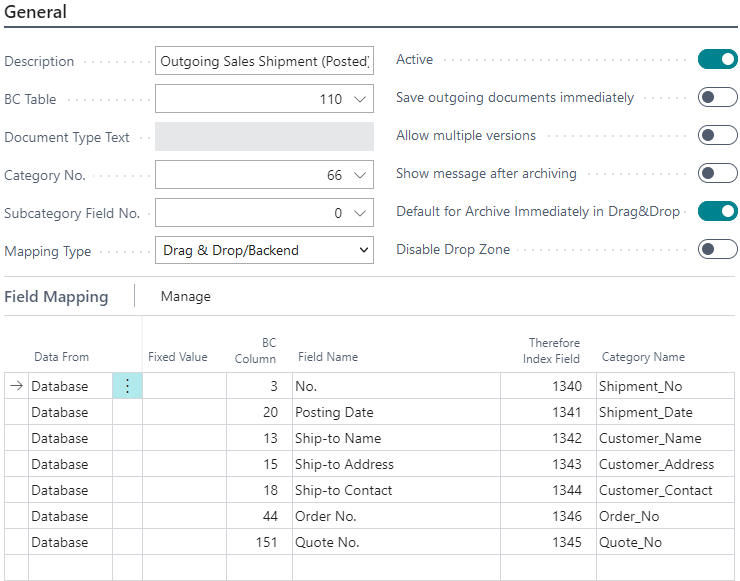
| Setting | Configuration | Setting | Configuration |
|---|---|---|---|
| Description | Outgoing Sales Shipment (Posted) | Active | Yes |
| BC Table | 110 | Save outgoing documents immediately | No |
| Document Type Text | N/A | Allow multiple versions | No |
| Category No. | 66 | Show message after archiving | No |
| Subcategory Field No. | 0 | Default for archive immediately in Drag&Drop | Yes |
| Mapping Type | Drag & Drop / Backend | Disable Drop Zone | No |
-
This mapping is executed when a Sales Shipment is posted (e.g., by posting a Sales Invoice or Sales Order). The associated report will generate a document that is then saved to Therefore™.
-
The option Save outgoing documents immediately can be disabled to speed up posting. The report will then be generated and saved to Therefore™ by the NAS Job Queue as a background task.
Purchase Receipts (Posted)
BC Table: Purch. Rcpt. Header (120)
Report: Purchase - Receipt (408)
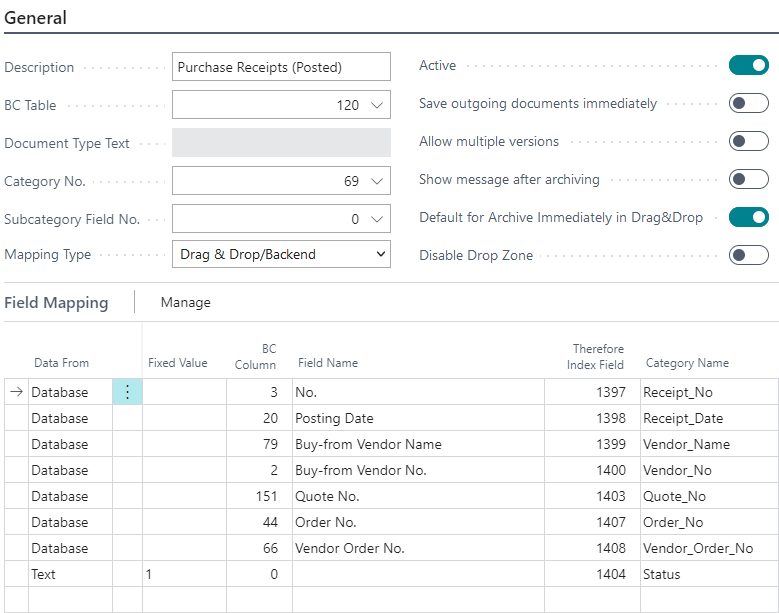
| Setting | Configuration | Setting | Configuration |
|---|---|---|---|
| Description | Purchase Receipts (Posted) | Active | Yes |
| BC Table | 120 | Save outgoing documents immediately | No |
| Document Type Text | N/A | Allow multiple versions | No |
| Category No. | 69 | Show message after archiving | No |
| Subcategory Field No. | 0 | Default for archive immediately in Drag&Drop | Yes |
| Mapping Type | Drag & Drop / Backend | Disable Drop Zone | No |
-
This mapping is processed by posting a Purchase Receipt, created alongside posting a Purchase Invoice and the generated report will be saved to Therefore™.
-
The option Save outgoing documents immediately can be disabled to speed up posting. The report will then be generated and saved to Therefore™ by the NAS Job Queue as a background task.
-
The Status field with the Text value 1 is needed for Late Document Linking.
Purchase Receipts (Posted) Late Linking
BC Table: Purch. Rcpt. Header (120)
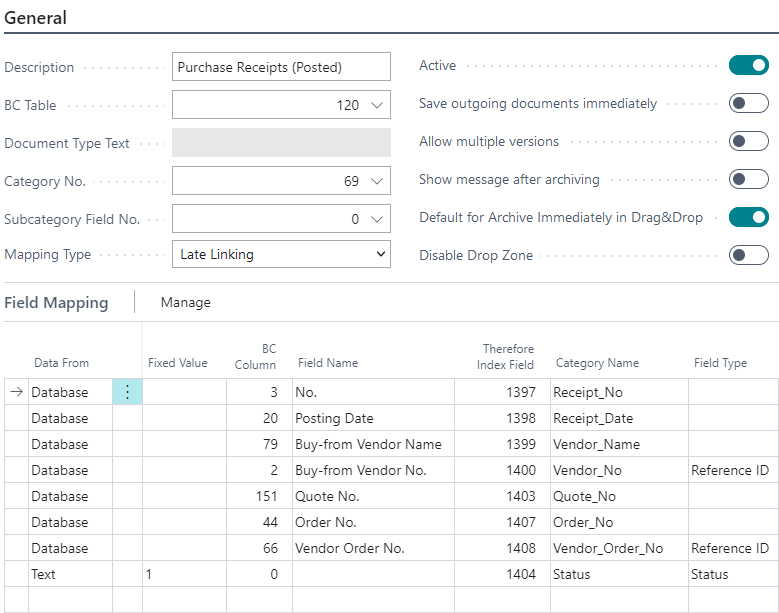
| Setting | Configuration | Setting | Configuration |
|---|---|---|---|
| Description | Purchase Receipts (Posted) | Active | Yes |
| BC Table | 120 | Save outgoing documents immediately | No |
| Document Type Text | N/A | Allow multiple versions | No |
| Category No. | 69 | Show message after archiving | No |
| Subcategory Field No. | 0 | Default for archive immediately in Drag&Drop | Yes |
| Mapping Type | Late Linking | Disable Drop Zone | No |
-
With the Mapping Type Late Linking this mapping will only be used for the Late Document Linking feature.
-
The NAS Job Queue will search in Therefore™ for documents with the specified Reference ID and Status of 0. If a document with a matching ID is found a link to the posted Purchase Receipt is created so it shows up in the Drop Zone.
-
Empty index data fields in Therefore™ will be updated as well. The Status will be set to 1.
-
For purchase receipts the Vendor No. and the Vendor Order No. were chosen as Reference ID, as they will form a unique key together.
Purchase Invoices (Posted)
BC Table: Purch. Inv. Header (122)
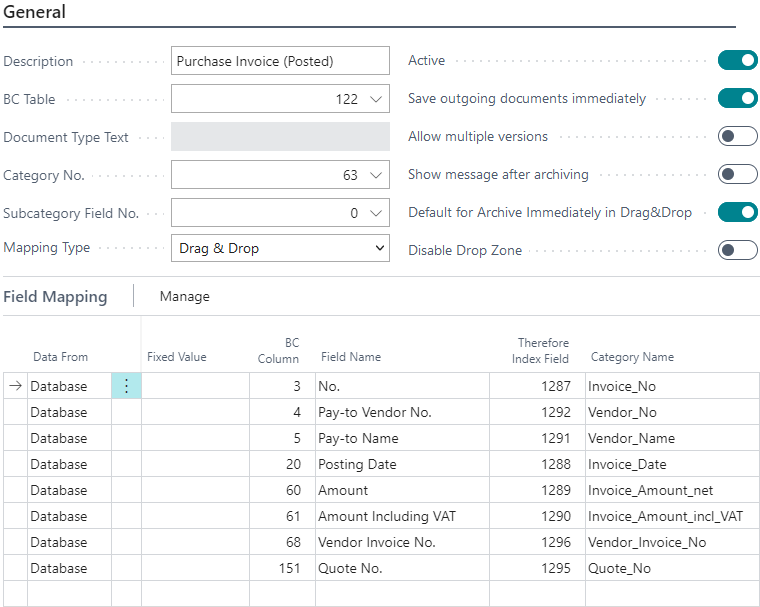
| Setting | Configuration | Setting | Configuration |
|---|---|---|---|
| Description | Purchase Invoice (Posted) | Active | Yes |
| BC Table | 122 | Save outgoing documents immediately | Yes |
| Document Type Text | N/A | Allow multiple versions | No |
| Category No. | 63 | Show message after archiving | No |
| Subcategory Field No. | 0 | Default for archive immediately in Drag&Drop | Yes |
| Mapping Type | Drag & Drop | Disable Drop Zone | No |
This mapping will be used when posting a Purchase Invoice to update the index data of the invoice that originated from Therefore™. It can also be used for ad-hoc saving of documents.
Purchase Invoices (Additional)
BC Table: Purchase Header (38)
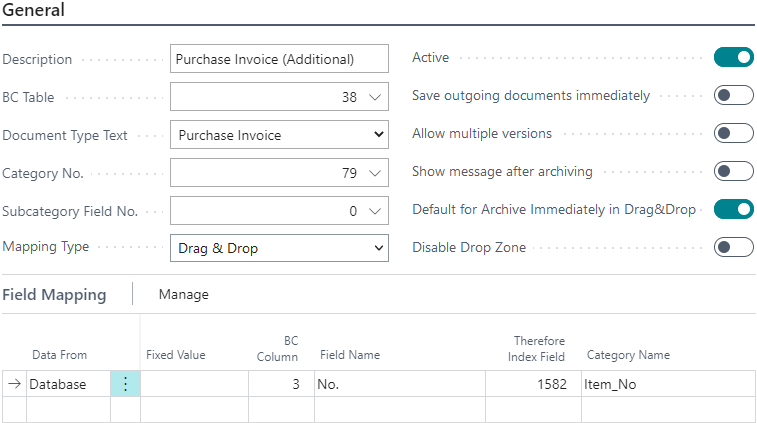
| Setting | Configuration | Setting | Configuration |
|---|---|---|---|
| Description | Purchase Invoice (Additional) | Active | Yes |
| BC Table | 38 | Save outgoing documents immediately | No |
| Document Type Text | N/A | Allow multiple versions | No |
| Category No. | 79 | Show message after archiving | No |
| Subcategory Field No. | 0 | Default for archive immediately in Drag&Drop | Yes |
| Mapping Type | Drag & Drop | Disable Drop Zone | No |
-
Posting a Purchase Invoice will make it a posted Purchase Invoice which would be handled by a different mapping. A posted Purchase Invoice will inherit all Therefore™ documents from the Purchase Invoice.
-
The Therefore™ category also has a Created by and Creation date field which are set by Therefore™ macros and not by the mapping.
-
All options except for Active and 'Default for Archive Immediately in Drag&Drop' are disabled and no reports are configured, as this mapping is just used for Ad-Hoc saving of additional documents to a posted Purchase Invoice.
Additional Mappings
The following mappings are not as frequently used as the recommend ones, but still relevant:
| Name | Table | Document Type | Report | Processed when |
|---|---|---|---|---|
| Issued Reminder | 297 | - | 117 | Issuing |
| Service Quote | 5900 | Service Quote | 5902 | Printing |
| Service Order | 5900 | Service Order | 5900 | Printing |
| Service Invoice | 5900 | Service Invoice | - | Printing |
| Service Credit Memo | 5900 | Service Credit Memo | - | Printing |
| Posted Service Shipment | 5900 | - | 5913 | Printing |
| Posted Service Invoice | 5992 | - | Printing | |
| Posted Credit Memo | 5994 | - | 5912 | Printing |
| Sales Invoice | 36 | Sales Invoice | 1302 | Printing |