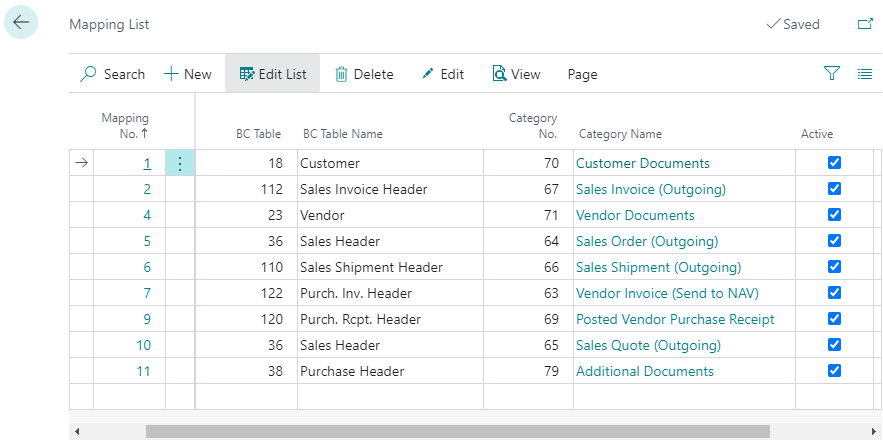
Mappings
It is recommended to synchronize the configuration before adding new mappings. To do so, navigate to the Setup tab and choose Synchronize Configuration to load the category definitions and case definitions from Therefore™.
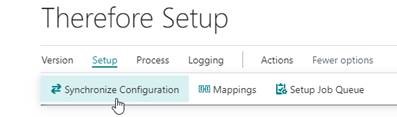
This will ensure that all field numbers and category numbers are up to date when doing the mapping. If you get a Web Service Call failed error, please check if HttpClient Requests are enabled in the extension settings.
In the Setup tab, choose Mappings to add new mappings or change existing ones.


|
Note: By default, there are no mappings which means that the connector won't do anything. The Therefore™ Drop Zone for storing and viewing Therefore™ documents will only be visible for mapped Microsoft Dynamics 365 Business Central Tables. |
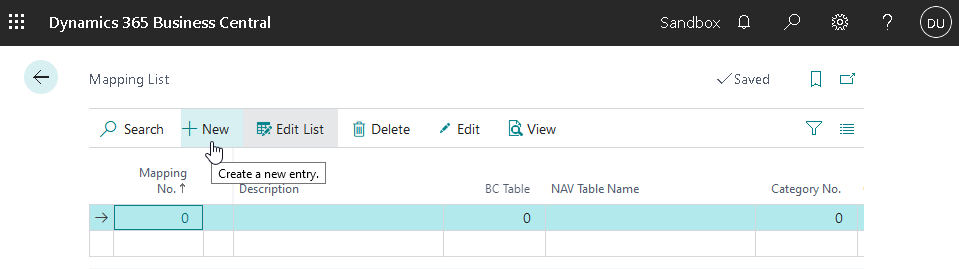
Click on New to create a new mapping; all changes are automatically saved and will also be effective immediately.
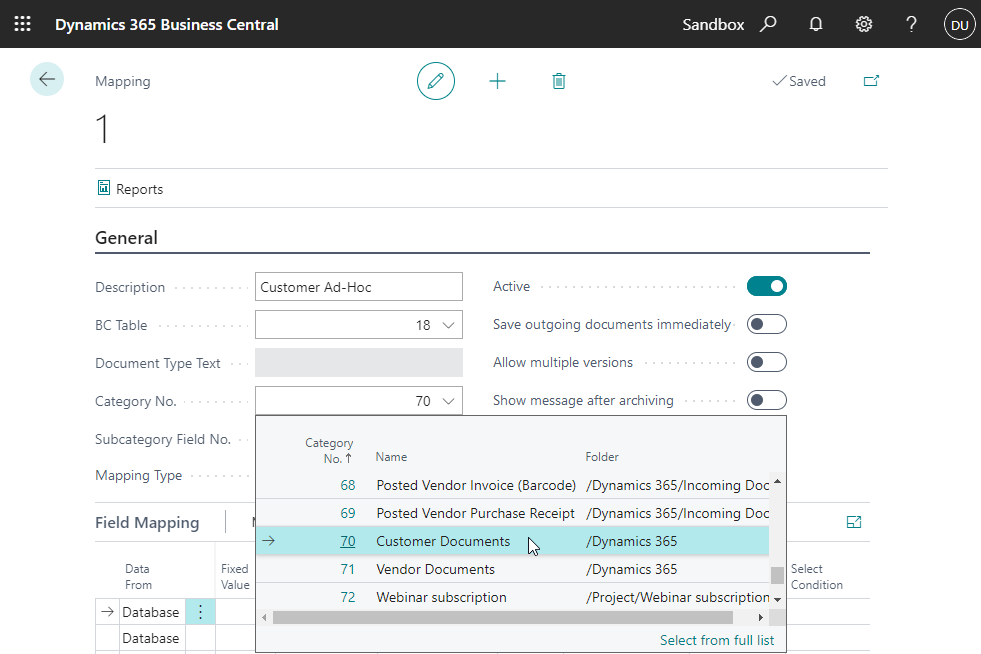
The BC Table entry needs to match a table in Business Central and the Category No. needs to match the category number in Therefore™.
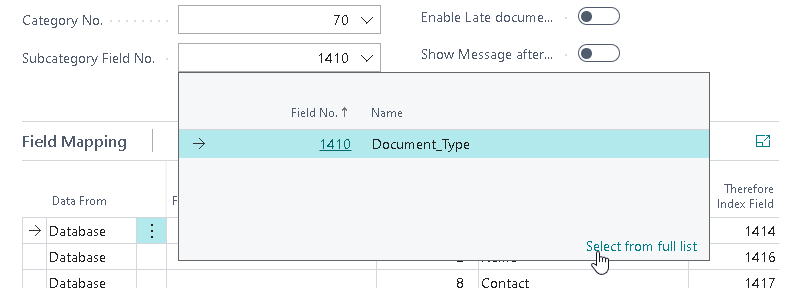
Both can be conveniently selected using the drop-down menu. There is no need to look up IDs manually. Optionally, a Subcategory Field No. can also be used if such a keyword field is used in Therefore™ for a sub-category. In this example, it is Document Type with FieldNo. 1410.
When saving a document using the Drop Zone, a keyword value can be chosen in the Add Document dialog. Using different Subcategory Field numbers allows multiple mappings to be active for the same Microsoft Dynamics 365 Business Central table.
There are different mapping types to choose from:
-
Drag & Drop
This mapping type defines in which Therefore™ Category a document should be stored and what index data it should contain. This mapping is executed when adding a document via 'Drag & Drop' to the 'Drop Zone'. It is possible to have multiple 'Drag & Drop' mappings. For example, this is useful for saving documents in different Therefore™ Categories. -
Backend
This mapping type generates a document based on the selected report and saves it to Therefore™. In order for this functionality to work, it is mandatory to specify a report. Backend mappings are similar to Drag & Drop mappings: both index data and category can be specified. This mapping will be executed during certain actions such as printing or posting. When exactly processing is carried out depends on the Business Central page. There can only be a single 'Backend' mapping or 'Drag & Drop / Backend' mapping active at the same time. -
Drag & Drop / Backend
This mapping is a combination of the 'Drag & Drop' mapping and the 'Backend' mapping. It includes a report as well as the DropZone. -
Late Linking
This mapping defines how Late Document Linking should search for documents in Therefore™. If index data should be automatically added as well the Microsoft Dynamics 365 Business Central columns need to be mapped to Therefore™ index data fields. -
External App
Indicates that this mapping is only used by an external application, calling the function “ThePostFunctions.AddDocumentToQueueWithBlob” directly. Such mappings must not define a report, as the document is passed in as BLOB parameter. There is an example of how to call this function in our Partner App on Github.
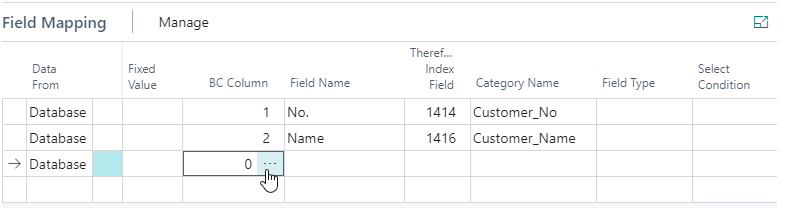
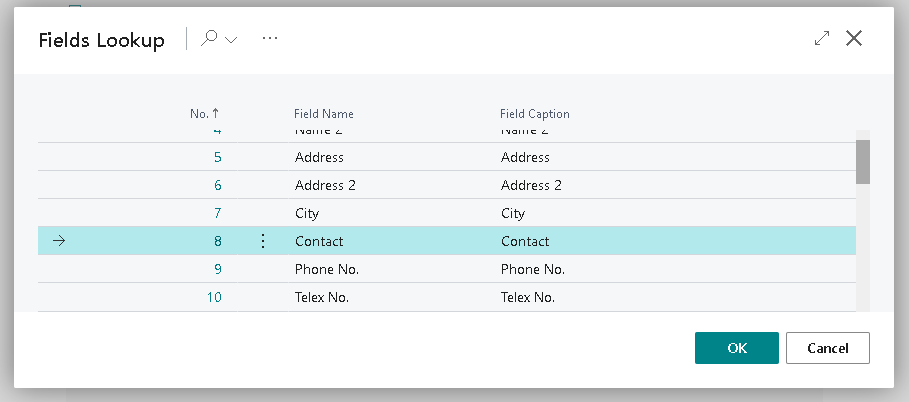
The three dots button can be used to search such a column:
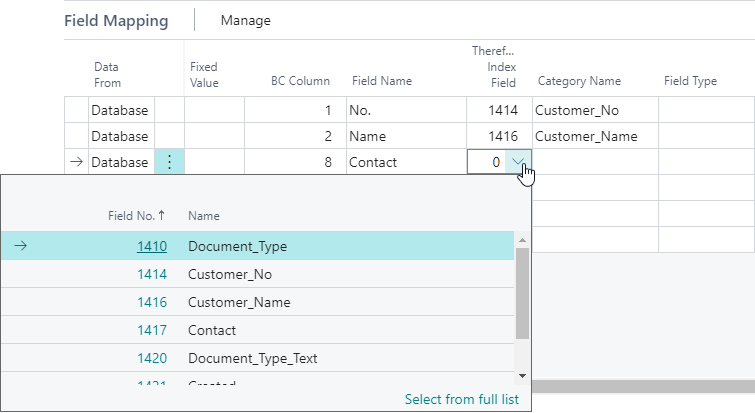
To complete the new index data mapping, a Therefore™ index data field needs to be selected as well:
The value in the 'Data From' column can be set to 'Text' to specify default values or macros, or to add the field for user input:
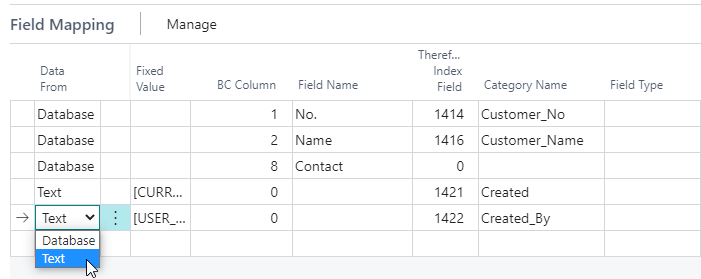
The following macros are supported:
|
[CURRENT_DATE] |
Stores the current date to the selected Therefore™ index data field |
|
[USER_ID] |
Stores the currently logged on Therefore™ user to the selected Therefore™ index field |
|
[AH_FILENAME] |
Stores the name of the file that is about to be saved to the selected Therefore™ index field |
|
[AH_ADDITIONAL_INFO] |
Stores the value of the 'Additional Info' text field in the 'Add document' dialog to the selected Therefore™ index field |
For defaults, any text value can be entered. If the value is not a macro, users will be able to edit the value before saving.
The value in the “Data From” column can be set to “Table”, which allows you to automatically populate a Therefore™ Index Data Table with values from a Business Central Table.
When choosing “Table”, two additional buttons will appear:
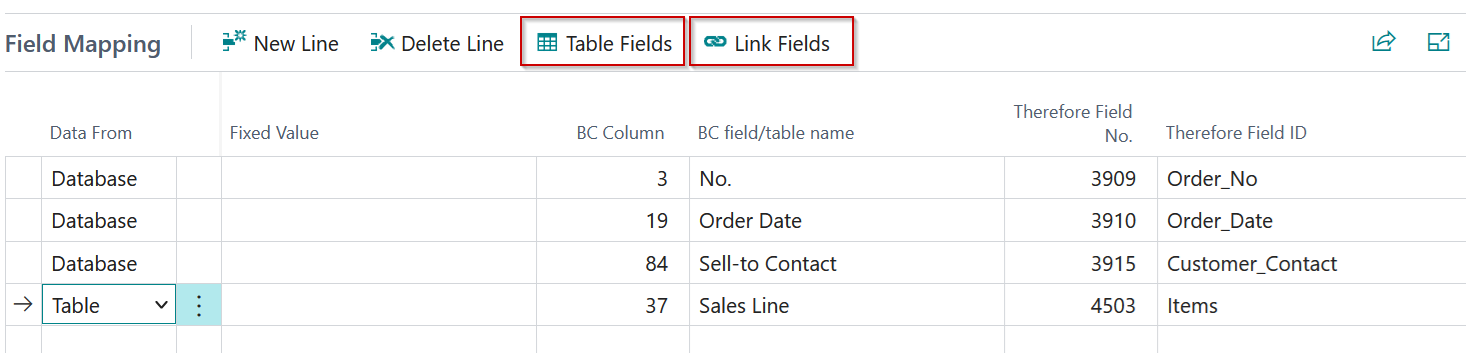
Table Fields button:
Opens a page, where columns of the selected BC Target Table, can be linked to columns of the selected Therefore™ Table field.
Link Fields button:
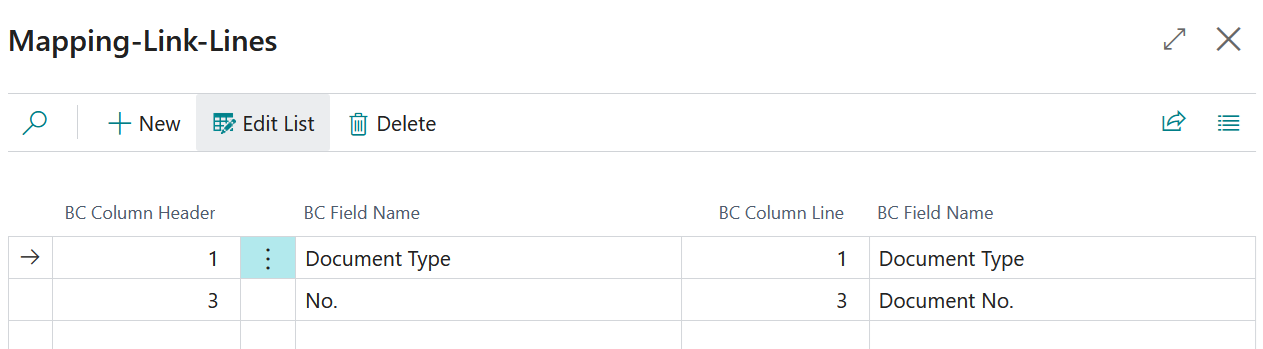
Opens a page, where you can define the link between the BC Table selected in the mapping and the BC Table selected in the current line should look like.
Here are a few examples for common combinations:
| Header Table | Header Field | Target Table | Target Field |
|---|---|---|---|
| 36 | 1 | 37 | 1 |
| 3 | 3 | ||
| 38 | 1 | 39 | 1 |
| 3 | 3 | ||
| 110 | 3 | 111 | 3 |
| 112 | 3 | 113 | 3 |
| 114 | 3 | 115 | 3 |
| 120 | 3 | 121 | 3 |
| 122 | 3 | 123 | 3 |
| 124 | 3 | 125 | 3 |
BC Header Table 36 (Sales Header) can be linked to BC Target Table 37 (Sales Line), by linking 36.1 to 37.1 and 36.3 to 37.3, as seen in the screenshot:
Finally, ensure the category mapping is set to active.

Newly created mappings are not activated by default.