Setup
Installing Therefore™ Connector for Business Central - Online scenario
The Therefore™ Connector for the hosted version of Business Central can be installed via the Microsoft AppSource.
-
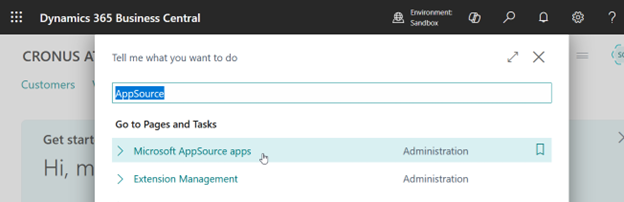
Enter "AppSource" into the search and select Microsoft AppSource apps.
-
This will bring up a list of all available apps from Microsoft AppSource.
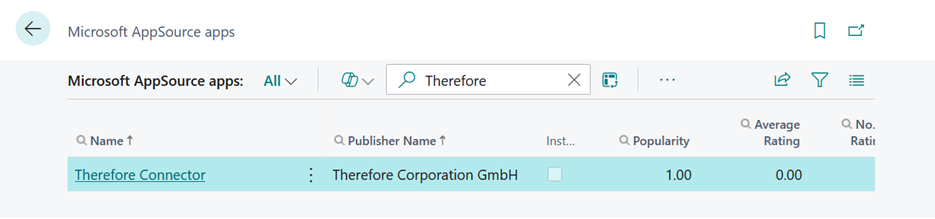
It should find one results, named “Therefore Connector”.
-
After clicking on that entry, it should be possible to install it:
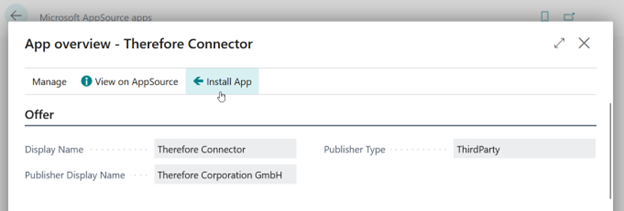
If the “Install App” button is missing, the app might already be installed.
-
Confirm the installation by clicking on “Install”:
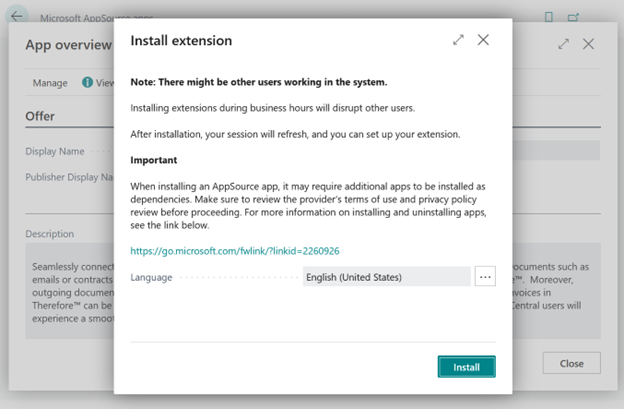
-
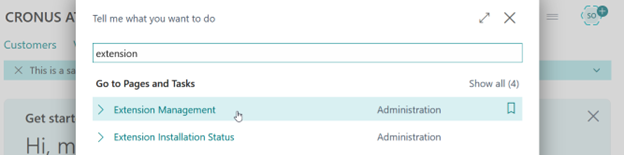
To check the status of the app installation, you can go to the “Extension Management” or “Extension Installation Status” pages:
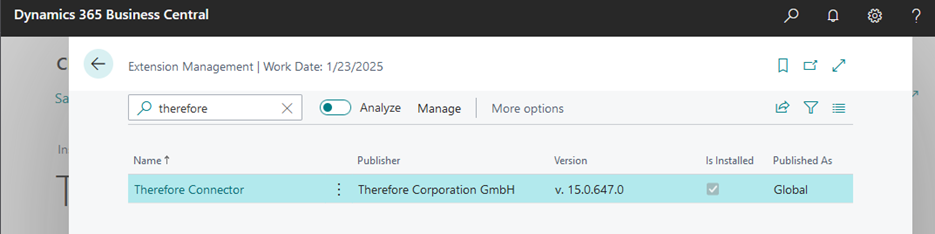
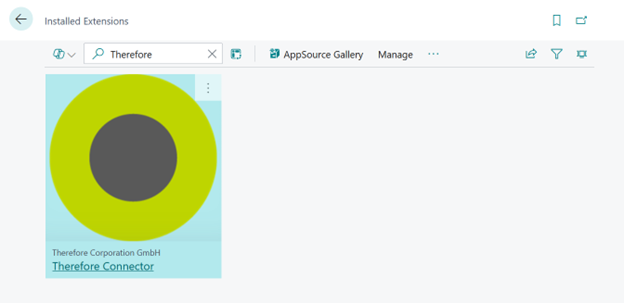
The connector should show up in “Extension Management” when filtering for “Therefore”:
-
If you are working on a Sandbox-Environment of Business Central, HTTP-Requests have to be enabled for the Therefore Connector to work.
Click on the “Therefore Connector” entry in Extension Management and enable “Allow HttpClient Requests”:
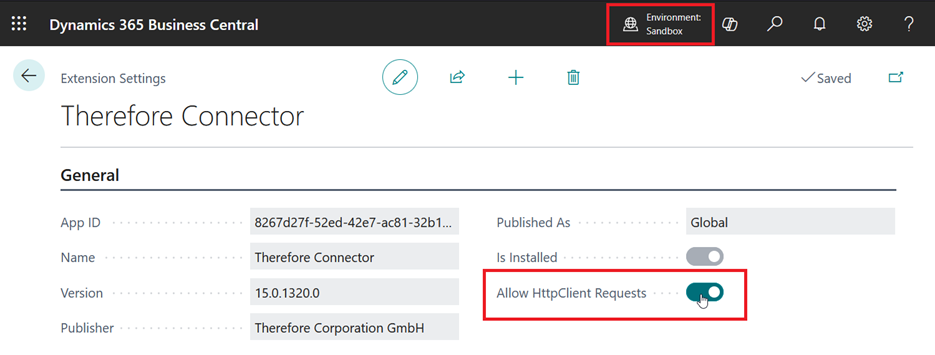
This step is not required on production environments
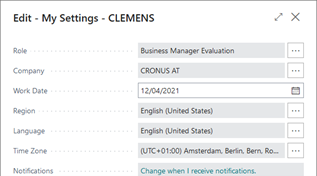
The language of the connector will change depending on a user’s personal settings:
Updating Therefore™ Connector for Business Central - Online scenario
The following steps are required to update an existing Therefore™ Connector on a hosted version of Business Central.
-
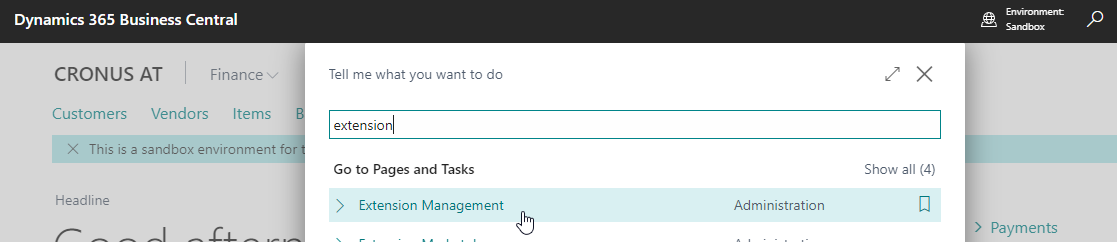
Open the Extension Management
-
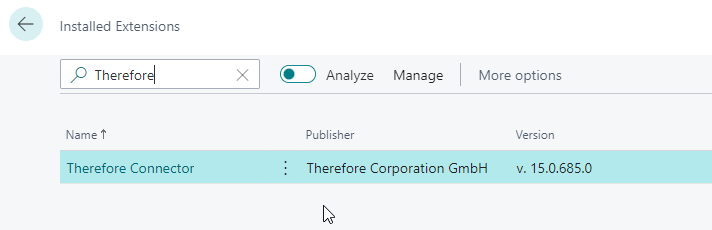
Search for the "Therefore™ Connector"
-
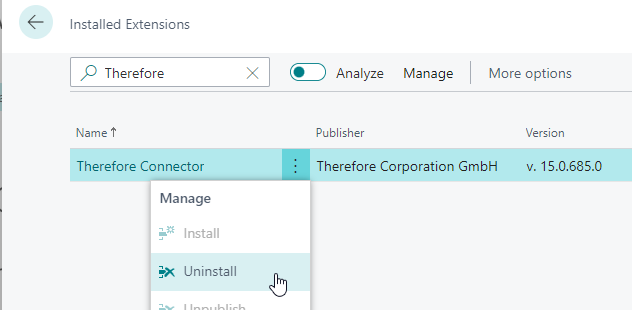
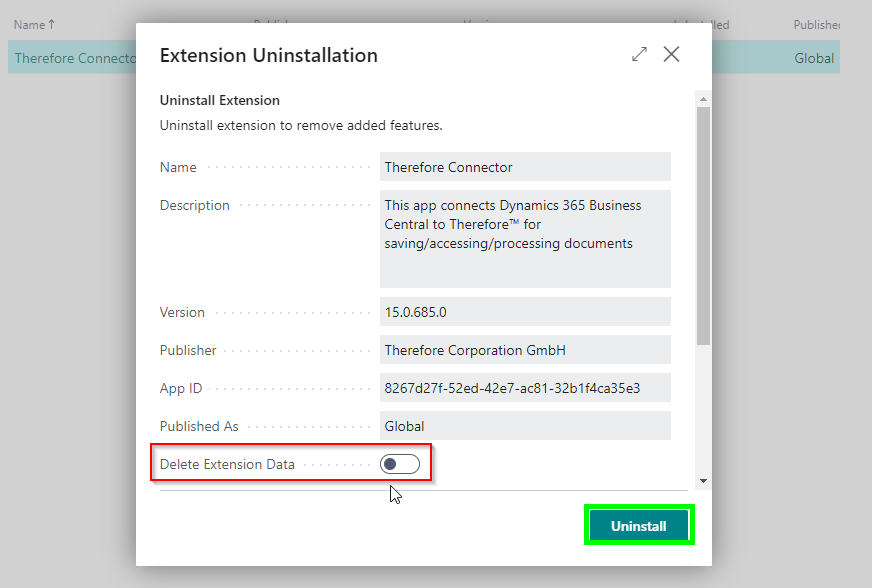
Click on the three dots and choose "Uninstall"

Ensure the option "Delete Extension Data" is not active. If the extension data is deleted all the settings and mappings will be lost. -
Click on "Uninstall" to uninstall the connector
-
If prompted, log out and back in again.
-
Proceed with the regular installation steps described above.
Installing Therefore™ Connector for Business Central - On-Premises scenario
The Therefore™ Connector for Business Central can be installed on an On-Premises scenario by using the following commands:
Publish-NavApp
Sync-NavApp
Install-NavApp.
You can either open Business Central Administration Shell or execute the command directly in PowerShell.
Here is an example of how the commands can be used:
Publish-NavApp -ServerInstance YourInstance -Path "BC23.0 - Therefore Corporation GmbH_Therefore Connector_15.0.647.0.runtime.app"
Sync-NavApp -ServerInstance YourInstance -Name "Therefore Connector"
Install-NavApp -ServerInstance YourInstance -Name "Therefore Connector"
The "ServerInstance" and "Path" parameters will need to be adjusted to your specifications.
In order to ensure you have the latest version of our connector, suitable to your version of Business Central, please contact our Support:
https://support.therefore.net/support/login
If the installation was successful, you should see the “Therefore Connector” App in “Extension Management”: