Configuring an eSignature task into a workflow
Workflows can automatically send documents for signing, provided that the user has a license with one of the eSignatureproviders in the following page:
Feature Availability by eSignature Provider
This tutorial will cover the necessary steps before a 'Send for Signing' task is ready to work.
-
Right-click on the eSignature node in the Therefore™ Solution Designer and select the provider's credentials to configure.
-
In the eSignature provider dialog, enter all the necessary details.
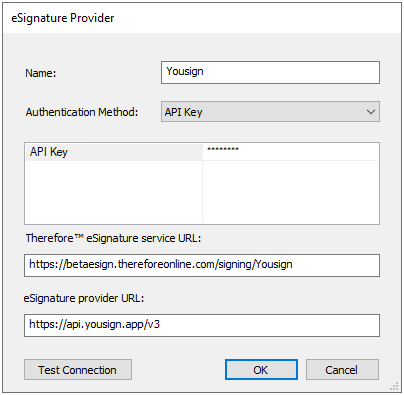

Note: The Therefore™ eSignature service URL is dependent on where the Therefore™ Server has been installed.
The Therefore eSignature service URL will be set automatically (as this is managed by Therefore™ in Therefore™ Online).
The API key can usually be found within the respective account of eSignature provider's website after logging in. -
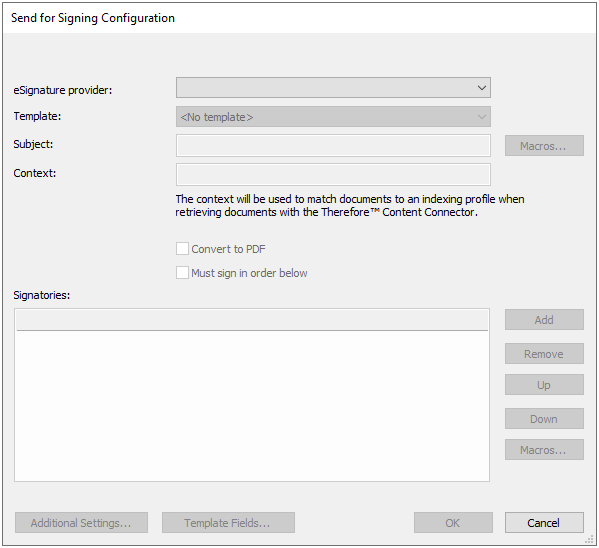
Under Workflows, include a 'Send for Signing' task to the workflow under the Automatic tasks list. Then configure the details.
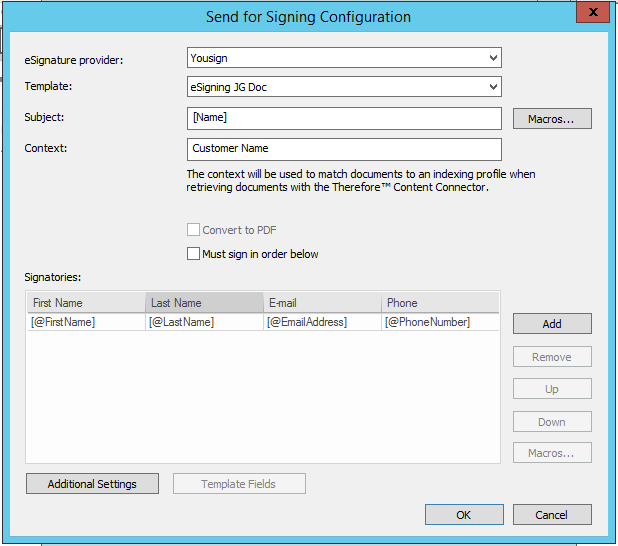
Note:
Templates can be configured within an account of an eSignature provider's website. -
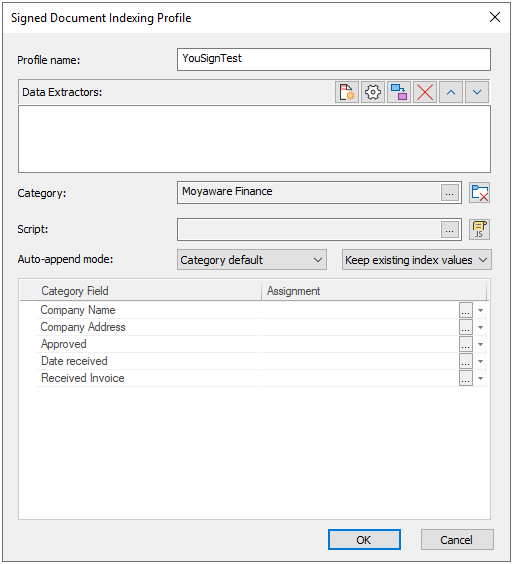
Return to the Therefore™ Solution Designer, right-click Indexing Profiles (under Design) and select New Signed Document Profile from the context menu.
-
In the Signed Document Indexing Profile dialog, assign the necessary category to the profile, and then set the Assignments to the respective Category Fields.
-
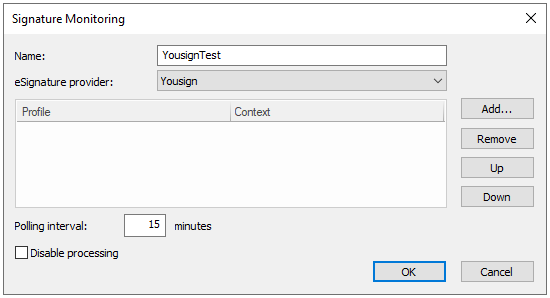
Return to the Therefore™ Solution Designer, right-click Signature Monitoring (under Integrations) and then select New from the context menu.
-
In the Signature Monitoring dialog, select the eSignature provider and click the 'Add' button to raise a Job dialog where Contexts can be added to Indexing Profiles.
-
When a 'Send for Signing' task has been included into a workflow, the Signatory information of the specific eSignature provider can be included in the Signatory field:
-
Any further configuration such as the language, invitation message, signing deadline and when to send a reminder can be done by accessing the 'Additional Settings' dialog.
For more details about configuring each signature provider please see our reference page:
Therefore™ eSignatures