Home Tab
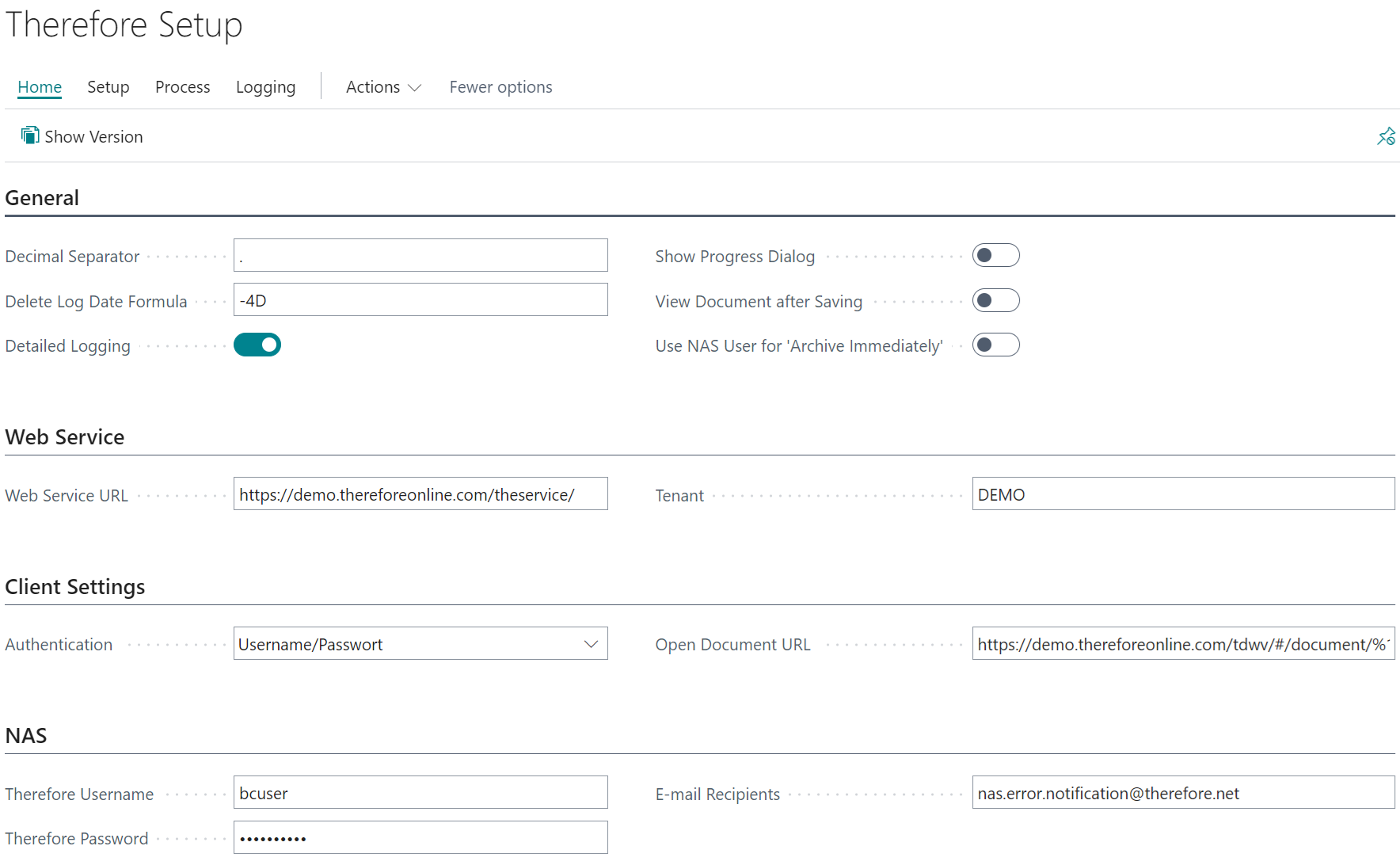
In order for the connector to work correctly, the following settings need to be configured in the Home tab:
General
Decimal Separator:
The decimal separator character needs to match the settings in Therefore™. This will ensure the correct transfer of decimal values.

|
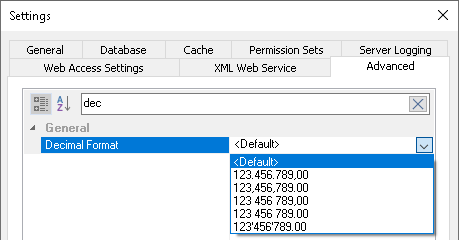
Note: Decimal format setting The decimal format setting can be found in the Therefore™ Solution Designer: |
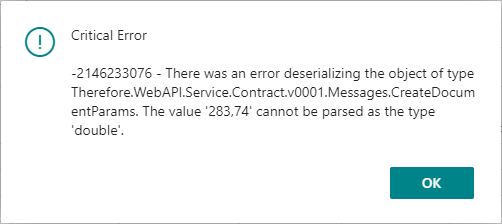
If <Default> is selected as “Decimal Format” in Therefore™, the default of the operating system is used. In Business Central, a deserialization error will be displayed if the decimal separator is configured incorrectly:
Delete Log Date Formula:
This formula determines after how many days the logs should be deleted. For details regarding the possible syntax use one of the examples, or click the following link:
| <Sign><Number><Unit> | Formula |
|---|---|
| -10D | This will delete all logs older than 10 days. |
| -2W | This will delete all logs older than two weeks. |
| -1Y | This will delete all logs older than a year. |
|
|
Note: Units Please note that the units are dependent on your current language setting. “D”, “W” and “Y” are valid for English but need to be adapted for other languages. For example, “D” becomes “T” in German. |
Show progress dialog:
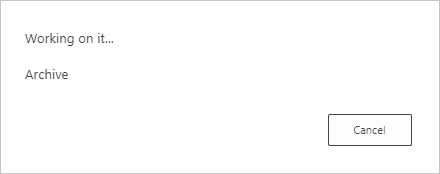
Shows a small dialog instead of a waiting icon to display the status of a long-running operation.
View document after saving:
Opens the document in the Therefore™ Web Viewer after saving it using the Drop Zone.
Use NAS User for ‘Archive Immediately’
These settings are used to change which user saves a generated report to Therefore™, if ‘Archive Immediately' is active.
Off: The currently logged-on user will be used to save reports to Therefore™.
This will require the current user to be logged on to Therefore™ when they are performing a related action such as posting an invoice.
On: The Therefore™ User from the NAS settings will be used to save the report.
This setting allows to, for example, save a report on booking even if the currently active user does not have a Therefore™ account.
If a Mapping has `Archive Immediately’ turned off then the user configured in the NAS settings will be used, to generate and save the report asynchronously.
Please note that setting a different user will also affect the [USER_ID] macro.
Detailed Logging:
Turns on detailed logging to help track down problems. The logs can be shown by clicking the “Event Log” button in the Logging tab.
Web Service URL:
The URL of the Therefore™ Web Service.
Therefore™ On-Premises:
https://your server/theserviceTherefore™ Online:
https://your tenant.thereforeonline.com/theservice/Tenant:
The name of the current Therefore™ tenant. This field will be empty if the system does not use multi-tenancy.
Authentication:
The chosen method for authentication. The following options exist:
-
Windows
This option will use the account of the Windows user who is currently logged in. -
Username/Password
This option will bring up a dialog prompting for username and password when using the Therefore™ Drop Zone for the first time. A stay-signed-in token will be generated so re-entering the credentials is not required.
The Therefore™ two-factor authentication can also be used with this mode. How often the identity has to be proven, depends on the stay-signed-in token lifetime. -
OAuth2/OpenId:
Selecting this option will bring up the settings for connecting via OAuth2/OpenId:
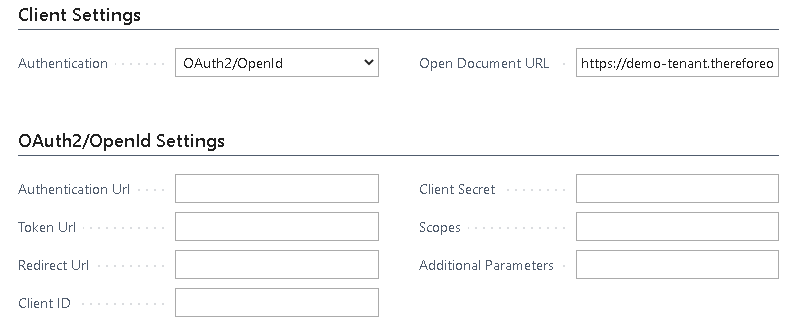
The Authentication Url and the Token Url as well as the Client ID and the Client Secret need to be retrieved from your SSO provider.
The Redirect Url needs to point to the OAuthLanding.htm, for example:
https://your server/BC170/OAuthLanding.htmFor Office 365/Microsoft Entra ID the URLs should read as follows:
| Authentication URL | https://login.microsoftonline.com/yourdomain.onmicrosoft.com/oauth2/authorize |
| Token URL | https://login.microsoftonline.com/yourdomain.onmicrosoft.com/oauth2/token |
| Redirect URL | https://businesscentral.dynamics.com/OAuthLanding.htm |
The required Scopes are: openid user.read
Open Document URL:
This URL points to the Therefore™ Web Viewer that should be used.
It uses a special syntax with placeholders for docNo and ssoToken:
*%1 will be replaced with the document number.
*%2 will be replaced with the single sign-on token.
For Therefore™ Dynamic Web View, the following URL pattern is used:
Therefore™ On-Premises:
https://your server/TWA/tdwv/#/document/%1?ssoToken=%2Therefore™ Online:
https://your tenant.thereforeonline.com/tdwv/#/document/%1?ssoToken=%2For Therefore™ Classic Web Client, the following URL pattern is used:
Therefore™ On-Premises:
https://your server/TWA/Client/WEB/Viewer/Viewer.aspx?DocNo=%1&ssoToken=%2Therefore™ Online:
https://your tenant.thereforeonline.com/Viewer.aspx?DocNo=%1&ssoToken=%2To use the installed Therefore™ Viewer to open a specific document please adapt the following URL:
therefore-viewer://d%1Therefore Username / Therefore Password:
The username needs to be a valid user in Therefore™.
This user must not use two-factor authentication, as it is used by background tasks, executed on the BC-server.
It will used for:
-
Late document linking
Requires permission for searching and editing documents. -
Saving of outgoing documents (asynchronously)
Requires permission to create new documents as well as editing existing ones (if multiple versions are allowed) -
Deleting orphaned documents from Therefore™
Requires permission to delete documents. This task will only be performed, when “Delete orphaned Therefore documents” option is set to active -
Clean-up Task
Requires “view in hit-list” permission.
E-Mail Recipients:
Specify e-mail recipients that should be notified in case the NAS Job Queue cannot save a document. See:
NAS Job Queue
It is possible to enter multiple addresses here, separated by a “;” symbol.
E-mail sending can be tested by clicking the 'Send Test E-Mail' button under the Setup tab.
Delete orphaned Therefore documents:
This setting controls whether documents stored in Therefore will also be deleted, when entries from Business Central are removed.
This setting will only affect the “Clean Up” button and the NAS Job Queue.
When manually deleting entries from the DropZone, the user will still be asked whether the document should be deleted from Therefore or only from BC (give the user has delete permissions).
This only applies for entries in BC that can be deleted. As it’s not possible to delete a posted invoice for example, they will not be affected.
The user specified in the NAS section of the Home Tab, will require delete permissions in Therefore, when activating this setting.