Troubleshooting
How error messages get reported
All error messages that occur should be reported to the workflow history.
As shown in the architecture diagram, Therefore™ is only sending a HTTPS request, the most important part (the customer code) is executed inside the called function.
If the function fails, all occurred errors should be reported back to Therefore™, so they can be logged to the WF history. If the function returned an error, the WF history entry will start with “The called function reported an error”. If the function crashes due to an unhandled exception or just does not return the information, there is nothing Therefore™ can log. If a function just returns a JSON object with an empty “TheError” string and “TheRoutingDone” bool set to false, it is already considered a success, as the HTTPS call worked and no error was reported.
Here are a few errors listed that can occur when calling a function:
|
Workflow History entry starts with: |
Problem description |
|
The workflow encountered an error. An error occurred while sending the request. |
The request could not be sent due to a network problem. Make sure the URL is correct and the required port is open (port 80 if not configured differently). |
|
The function was called successfully, but requested a retry in %d minutes. |
The function returned the “TheRetryAfterMin” in the request. The workflow engine will wait for %d minutes and then call the function again. This is not an error and just logged to the workflow history as additional informational. |
|
The HTTP request to '%s' has timed out. |
Sending the request successful, but the function did not return anything in the 4-minute time frame. |
|
The called function did not return a mandatory value. |
It is mandatory that the function return a JSON object as defined in the specification. |
|
The called function reported an error. |
The request was successful, but something went wrong inside the function. The information followed by that string should be enough to determine what is wrong. |
|
The called function reported an error. No connection could be made because the target machine actively refused it. |
The request was successful, but the function could not connect to the XML Web Service using the Web API. This could be a networking problem or the “Web API URL” server setting is not configured correctly. |
|
The called function reported an error. Web API base URL not set. |
The “Web API URL” is not configured in the advanced server settings. |
|
The called function reported an error. Access denied. |
A Web API call was made with insufficient privileges. Additional permissions need to be granted. |
|
The called function reported an error. You are not allowed to… |
A Web API call was made with insufficient privileges. Additional permissions need to be granted. |
|
HTTP request failed with status code 401. |
Status code 401 stands for “Unauthorized”. An incorrect function key was specified for calling the Azure function. |
|
HTTP request failed with status code 404. |
Status code 404 stands for “Not found”. The configured URL is incorrect. |
|
HTTP request failed with status code 403. |
Status code 403 stands for “Forbidden”. The called Azure function is not running. |
|
HTTP request failed with status code 500. |
Status code 500 stands for “Internal server error”. This can happen if an unhandled exception occurred. |
Monitoring in the Azure Portal
Microsoft’s “Application Insights” should be configured for monitoring Azure functions. A list of recent function calls can be shown when clicking “Monitor” after selecting a function in the Azure Portal.
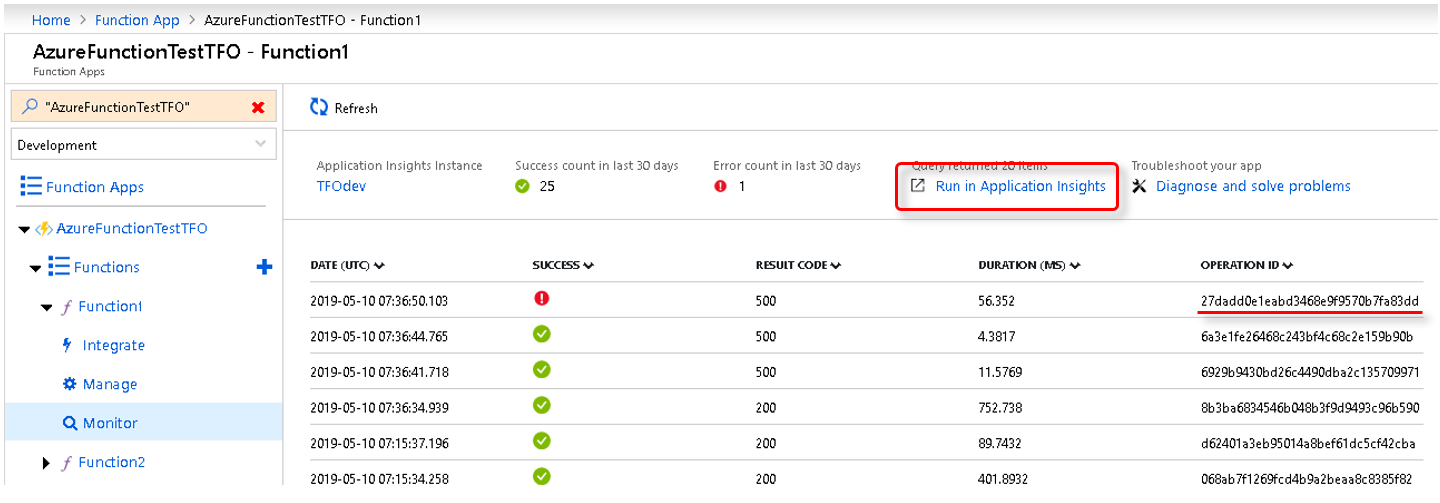
Function calls will be shown as ‘successful’ if no unhandled exception occurred, regardless of the result code or caught exceptions. Therefore™ treats this similarly – if an exception was caught, it should be reported with status code 200, plus the exception information in “TheError” return string.
If an unhandled exception occurred, nothing can be returned to Therefore™ from the function, the Web Service will just send status code 500. In this case, no other information than status code 500 can be shown in Therefore™ and the Azure Monitoring needs to be checked for details.
The “Operation ID” can be used for querying the exceptions table for details and the stack traces. Copy the “Operation ID” and click on “Run in Application Insights” to open it in a new tab.
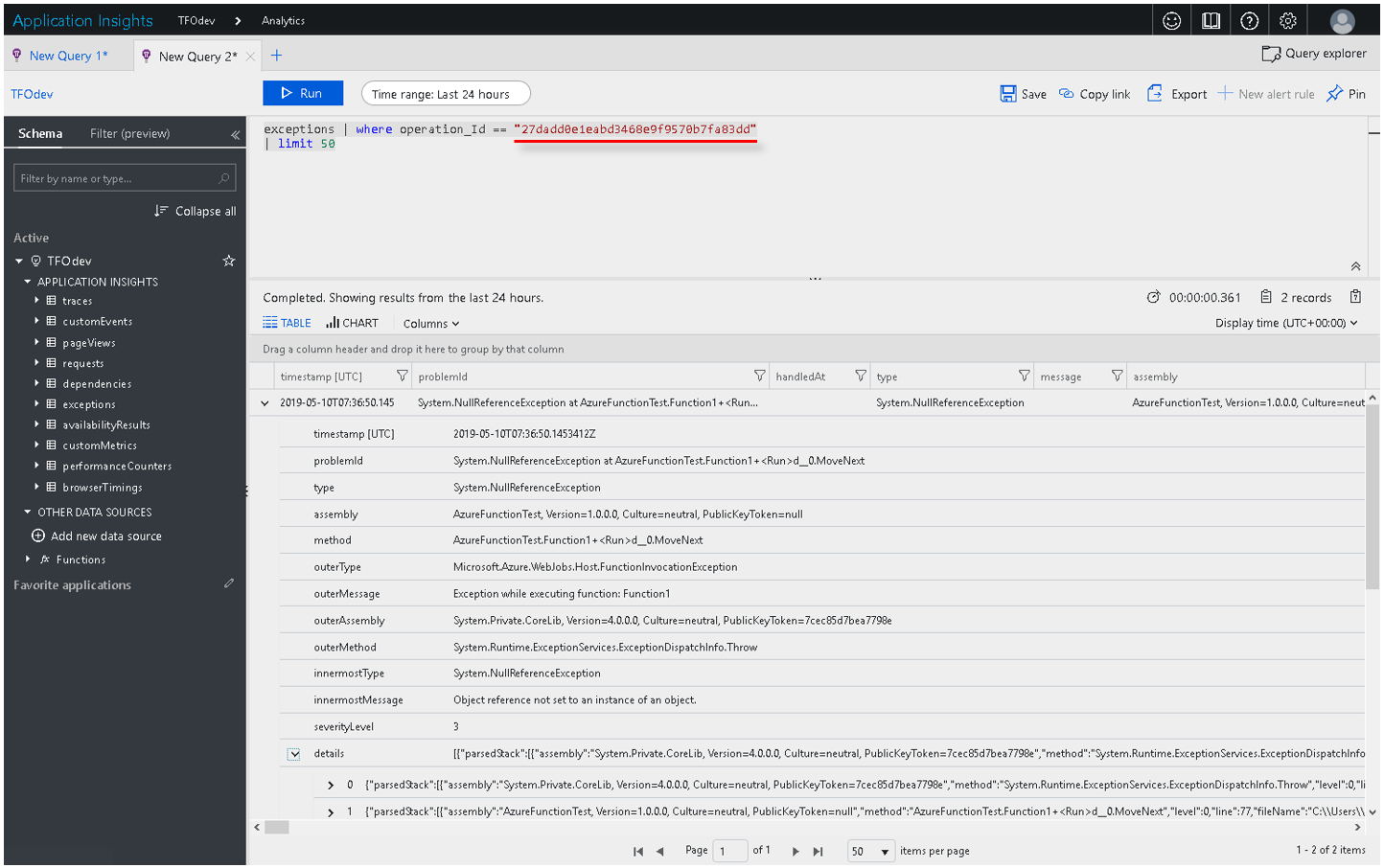
Paste the “Operation ID” into the query window and structure a query like this:
exceptions | where operation_Id == "OperationID"
| limit 50
After clicking “Run”, exception information that belongs to the “Operation ID” should be listed.
There should be at least one row with exception information displayed.
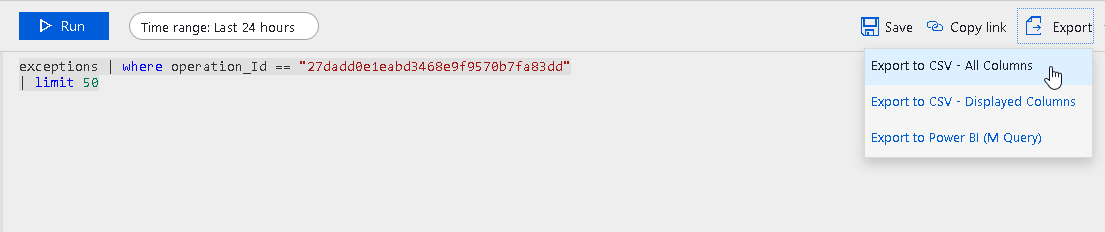
Export all rows and send it to the developer responsible for this Azure function.
Also check the traces table for additional workflow information. If a sample was used, each function call should be logged with instance-, token- and case- or document-number.
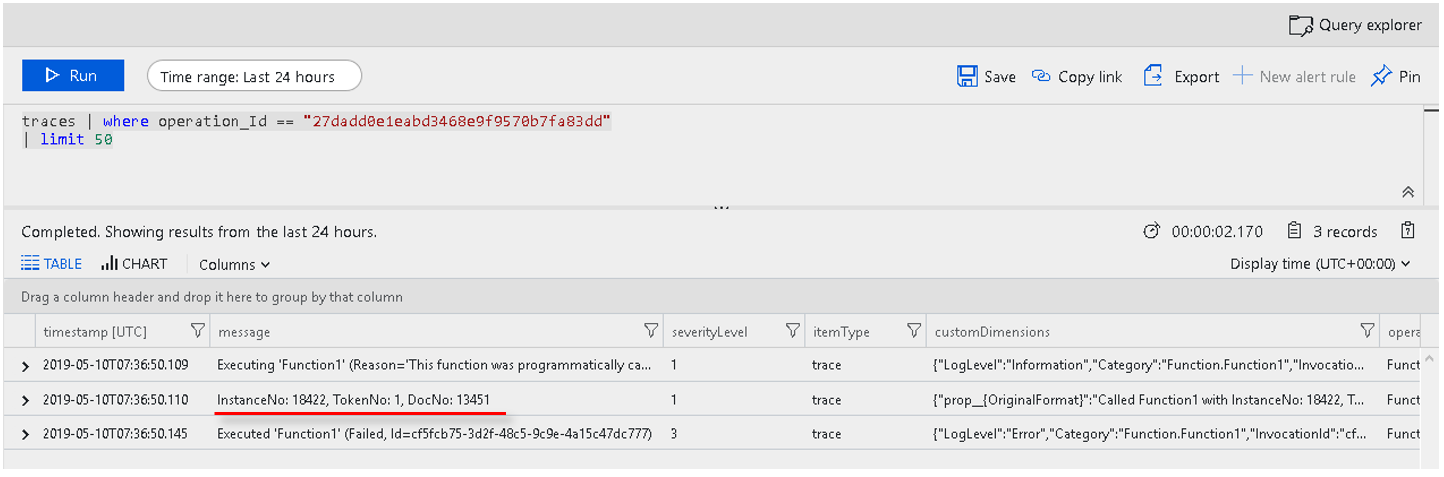
Copy the previous query and replace “exceptions” with “traces”:
traces | where operation_Id == "OperationID"
| limit 50
Include that information as well when notifying the developer.
If the function does any conversion tasks, the document should be provided as well.
Development FAQs
-
How and where to develop an Azure function?
Developing an Azure function can be done completely within Visual Studio and without the need for an Azure subscription. After creating a new Azure function using the project wizard, it can already be started by pressing F5. The debugger with break points work as with any other application. -
Is an Azure subscription necessary?
Not for testing/development. Azure functions can be written and executed directly within Visual Studio. If the development system is publicly accessible over http, it could even be used with Therefore™ Online. When it comes to running the Azure function in a productive environment, an Azure subscription is needed. Alternatively, it’s also possible to create a function for a Web service not hosted in Microsoft Azure. In this case, no subscription is needed. -
Why is the function not returning a mandatory parameter?
All functions called by the “Call Function” task need to return a JSON object that contains “TheError” string and either “TheRoutingDone” bool or “TheRetryAfterMin” integer.
If no error occurred, “TheError” needs to be empty, but needs to exist in the JSON object. But especially in case of an error, it is important to catch the exception and forward it to Therefore™ using “TheError” so the information can be logged correctly. -
How to test the Azure function without Therefore™?
Especially when getting started developing (Azure) functions, it might be quicker to directly call the function for testing. Using cURL this can be done with the following command:Copycurl –d “” –i –X POST http://localhost:Port/api/Route
If the function has already been deployed to Azure, use the following command instead:CopyThe Route can be defined in code. If it is not defined, the function name is used insteadcurl –d “” –i –X POST “https://AppName.azurwebsites.net/api/Route?code=FunctionKey” -
Calling the Web API results in 'Access Denied' or 'You are not allowed to...'
For security reasons, the provided JWT-token has very limited permissions and therefore it is likely to come across permission problems. If more permissions are needed, an internal user needs to be created that has all the required permissions. The credentials can then be passed to the function using “WebAPIUser” and “WebAPIPassword” by adding them as an Application Setting in the Azure Portal, or for local development in the “local.settings.json” file. -
Is the Therefore™ API useable for a function?
This depends on the platform you are using. When using Azure functions, the Therefore™ Web API needs to be used instead, as the normal API has too many dependencies.