Frontend Communication Customizing
The archived documents can be displayed in the SAPGUI for Windows with the standard SAP NetWeaver viewing components or the Therefore™ VIEWER. The way to display the documents can be chosen for each document type, for example PDF, DOC, TIFF or other.
-
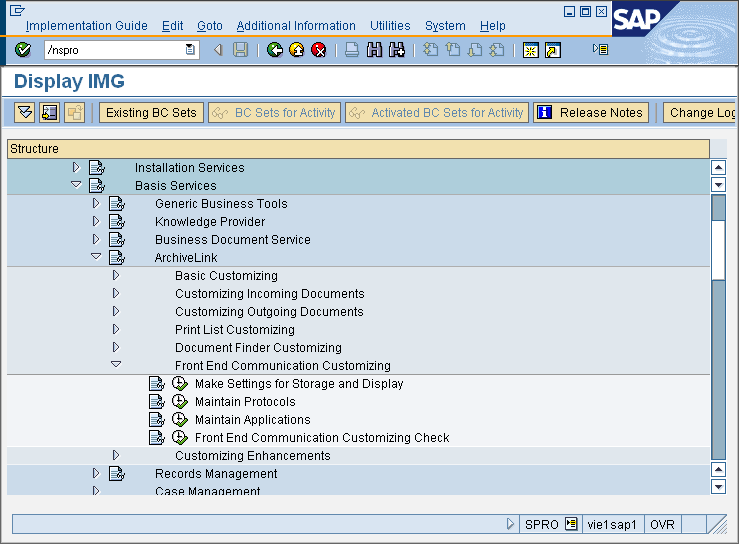
Navigate to Front End Communication Customizing and then Maintain Applications click the Activity icon (or right-click and choose Maintain Activity from the context menu).
-
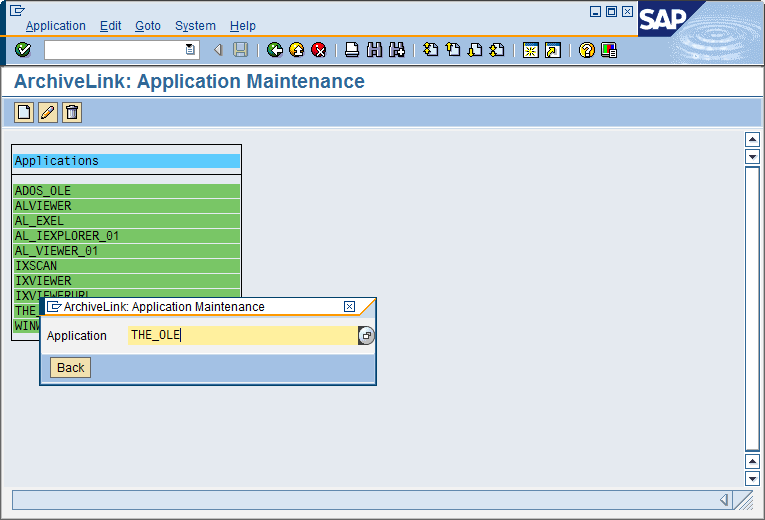
The Applications list will be displayed. Click the Create icon (F5). Type in THE_OLE and then click Back.
-
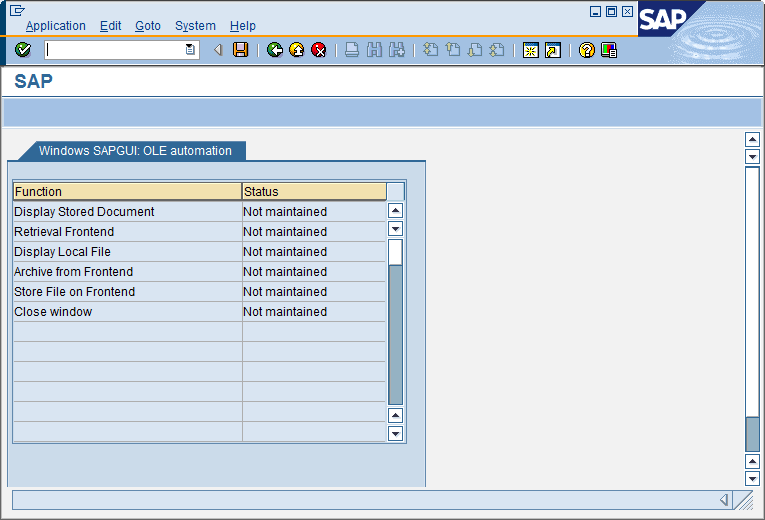
THE_OLE will now appear in the list. Double-click on it and the OLE automation list will be displayed. Double-click on Display Stored Document.
-
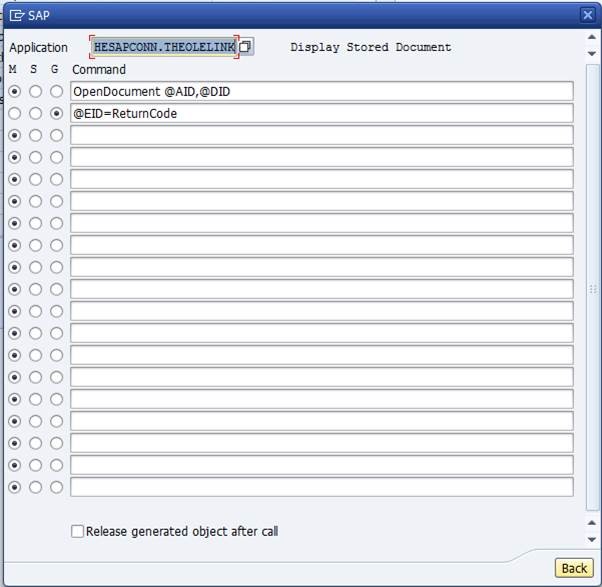
Type in THESAPCONN.THEOLELINK as the application name and then configure as per the screenshot below. Click Back when done.
-
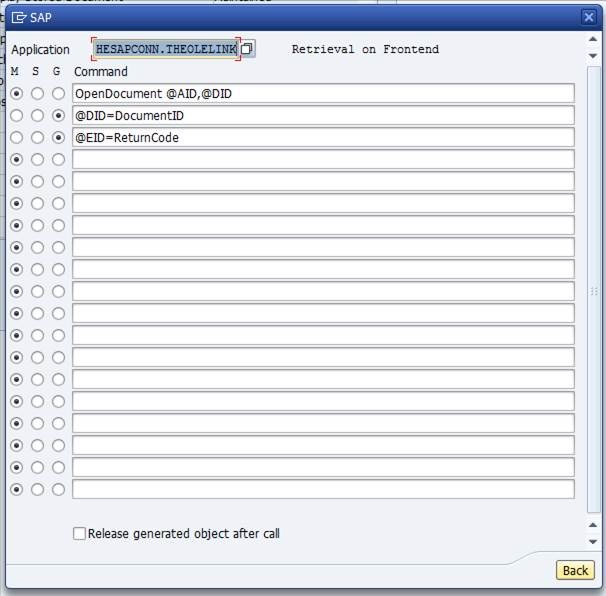
Do the same for Retrieval Frontend, and configure as per the screenshot below.
-
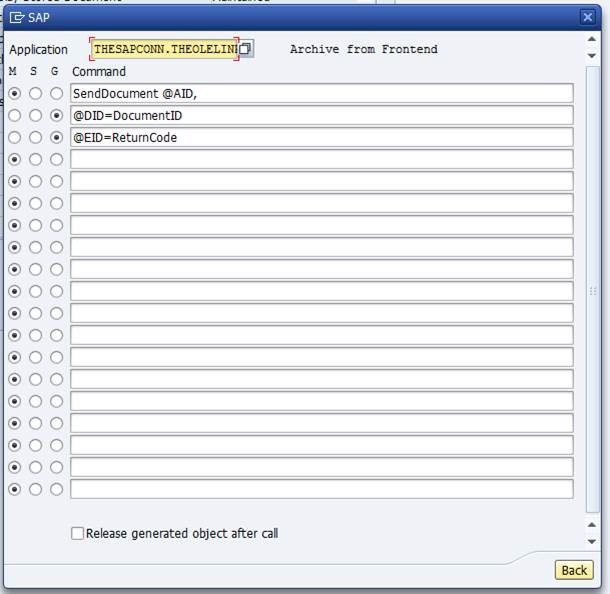
Similarly do this for Archive From Frontend, and configure as per the screenshot below.
-
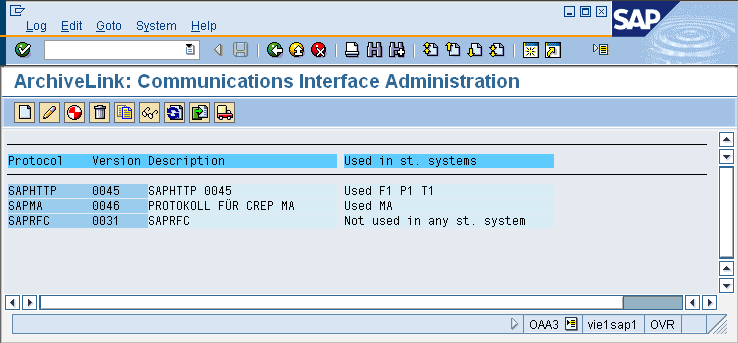
Once done navigate back to Front End Communication Customizing and go to Maintain Protocols click the Activity icon (or right-click and choose Maintain Activity from the context menu). Double-click on protocol SAPHTTP 0045.
-
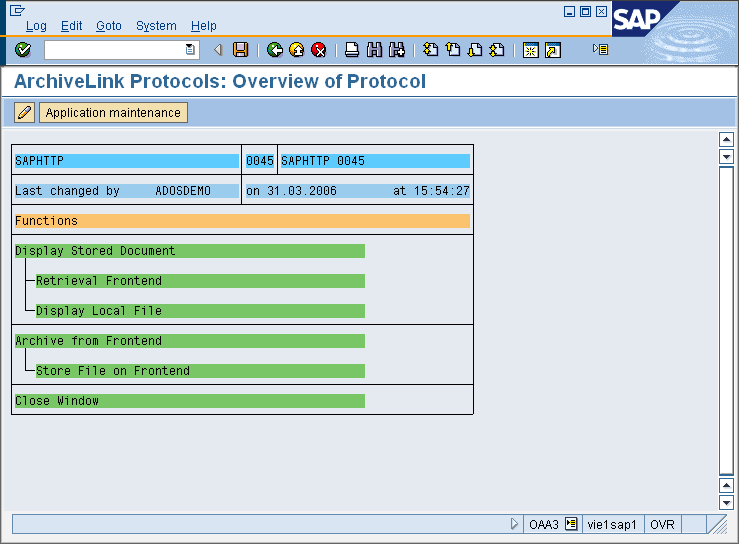
An Overview of the protocols will be displayed. Double-click on Retrieval Frontend.
-
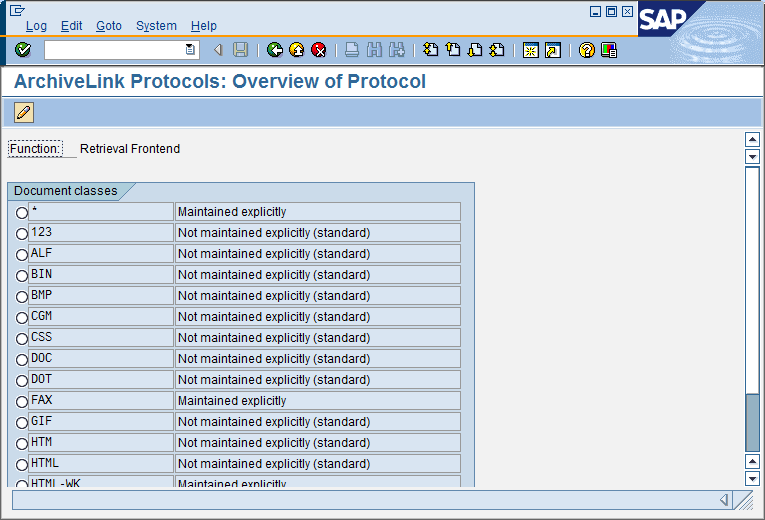
A list of file formats will be displayed. Formats that should be displayed by the Therefore™ Viewer can be selected and then opened with a double click.
-
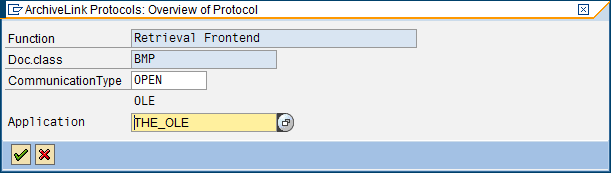
Set the Communication Type to OPEN and the Application to THE_OLE and then click the tick button.
-
Do the same for Display Local File and Store File on Frontend.
-
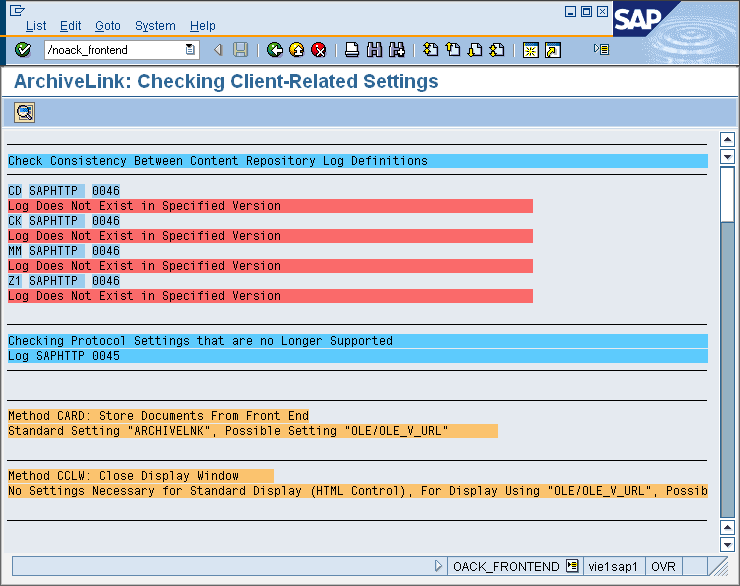
The settings for the front end can be checked by navigating back to Front End Communication Customizing and go to Frontend Communication Customizing Check. Click the Activity icon (or right-click and choose Maintain Activity from the context menu).To display a result, please position the cursor on the appropriate error text and press F2. You can also display the result by using a double click on the error text entry, or you can use the CHOOSE button.
-
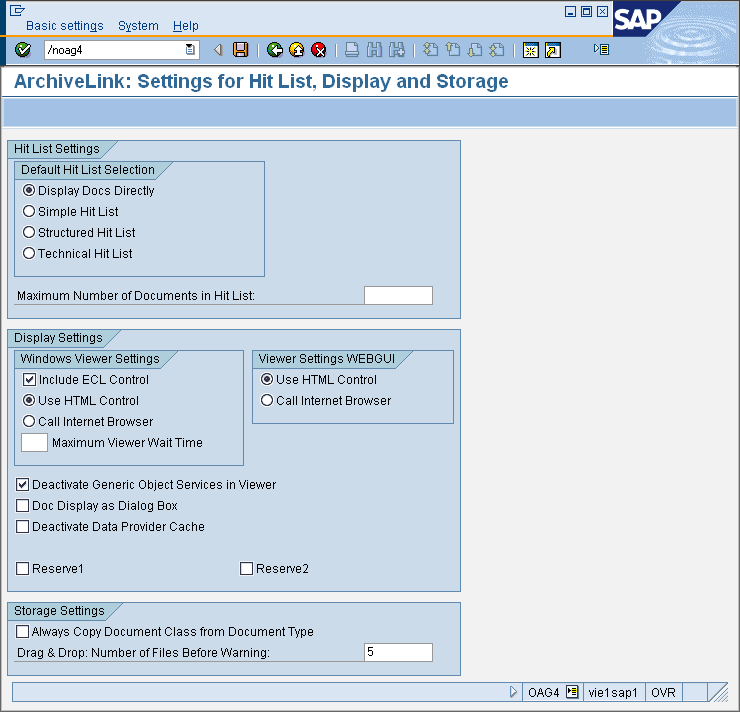
Finally navigate back to Front End Communication Customizing and go to Make Settings for Storage and Display. Click the Activity icon (or right-click and choose Maintain Activity from the context menu).