Customizing Outgoing Documents
In SAP NetWeaver there are different ways how outgoing documents can be managed. In the most cases outgoing documents are invoices, delivery notes or other client related documents.
Check Customizing of Outgoing Documents
An easy way to proof the functionality is to archive a document in SAP NetWeaver to the related repository in Therefore™. A simple example how a test can be performed with invoices. In these steps an existing invoice is re-printed first using the Storage Mode ARCHIVE ONLY. The storage process can be monitored after in the Archivelink Monitor. The document can be retrieved in the last step and displayed either with the internal SAP viewing components or using the Therefore™ Viewer.
-
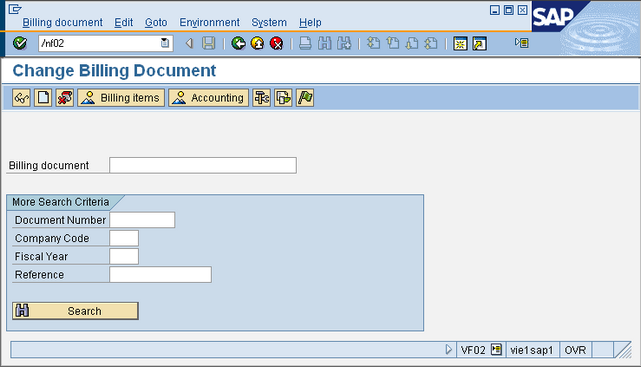
Key in /nvf02 into the command line a hit ENTER. Select a Billing Document from the list or type the document number in the input field. Click Billing Items.
-
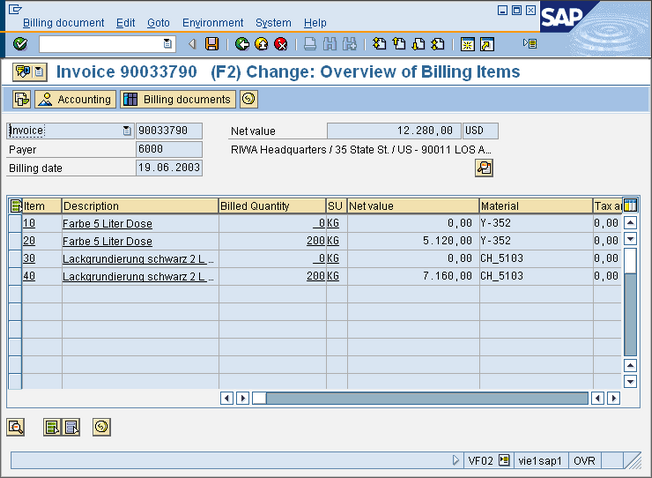
In the Menu, click GOTO -> HEADER -> OUTPUT.
-
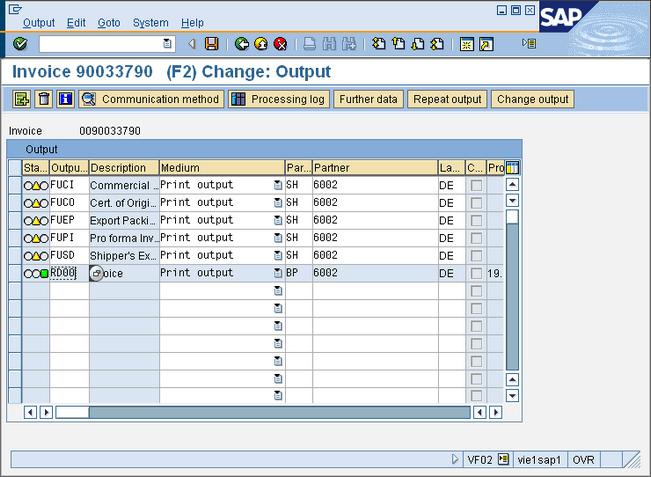
Choose the relevant invoice and click Communication method.
-
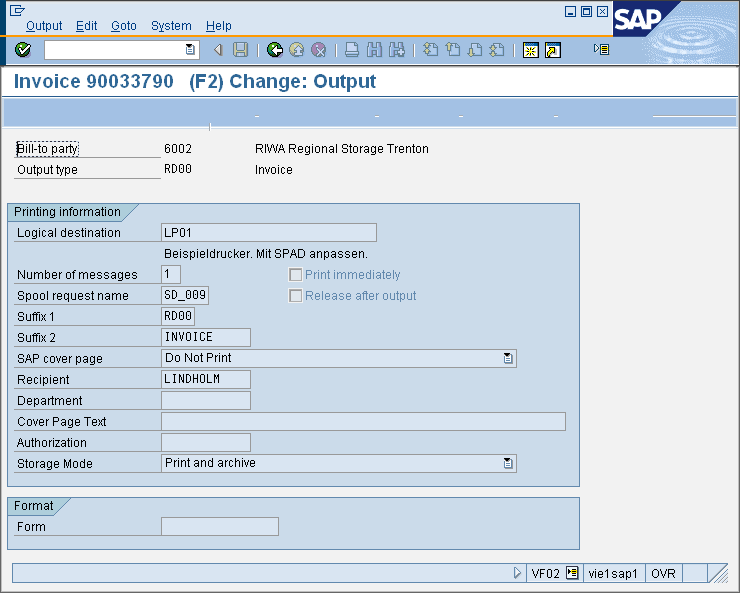
Select Storage Mode ARCHIVE ONLY in the field Storage mode. Press button BACK to return to the previous screen. Press button Further Data in the button bar to open the output scheduling dialog.
-
Choose SEND IMMEDIATELY as Display time in the Request processing frame. Press button BACK to return to the previous screen. Press button SAVE in the button bar start the output operation. In the result line, on the button of the screen, a output send confirmation is displayed.
-
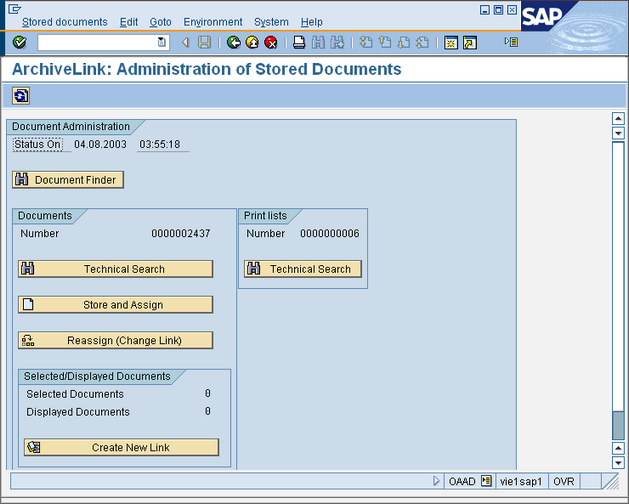
Key in /naad into the command line a hit ENTER. Administration of Stored Documents ArchiveLink will open.
-
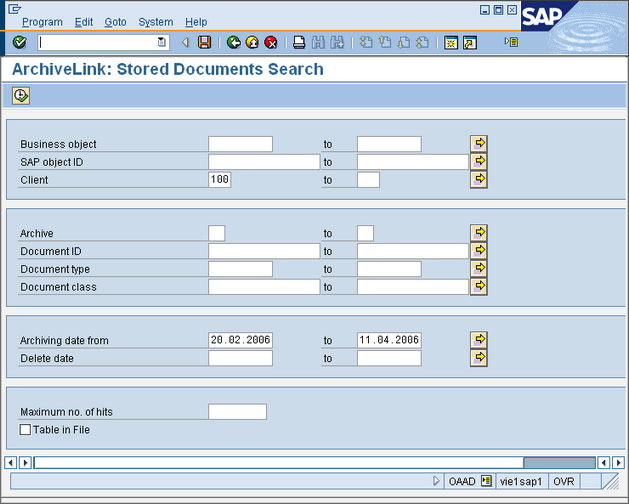
Click TECHNICAL SEARCH to open the search dialog. Enter a Client (ex. 100) and define a Archiving Date range for the search.
-
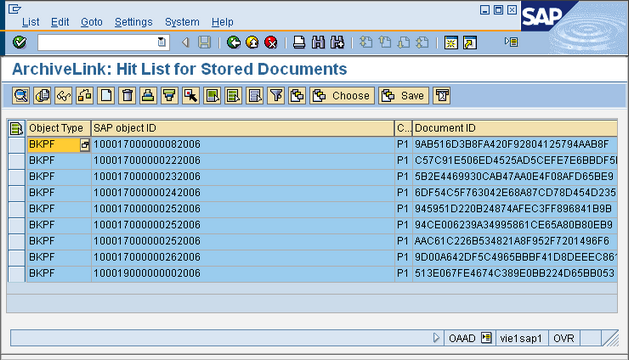
Press the EXECUTE button or press F8 to start the search. A result list will be displayed.
-
Double click on the Item in the list to open the document. If the document is retrieved successfully then the test was successful.
See also: