Configuring Blob Storage as a Storage Device
Therefore™ On-Premises users can configure the blob storage of their own Azure environment to be used as a storage device. The necessary steps are described below.
Most of the steps described have to be done in the Azure environment. For more information please refer to the relevant Microsoft documentation:
https://learn.microsoft.com/en-us/azure/storage/blobs/storage-blobs-introduction
Setup and Permissions
Initial Setup
-
Create a Storage Account.
-
Create a Blob Container inside the storage account.
-
Create a Service Principal (SPN).
Assign Permissions
-
Go to the Storage Account.
-
Open IAM (Access Control).
-
Assign the following role to the Service Principal (SPN) that was created previously:
Storage Blob Data Contributor
Authentication
There are two different approaches to authentication for blob storage as a storage device. The approaches are to either use a client secret or a certificate.
Authentication using Client Secret
Creating a secret
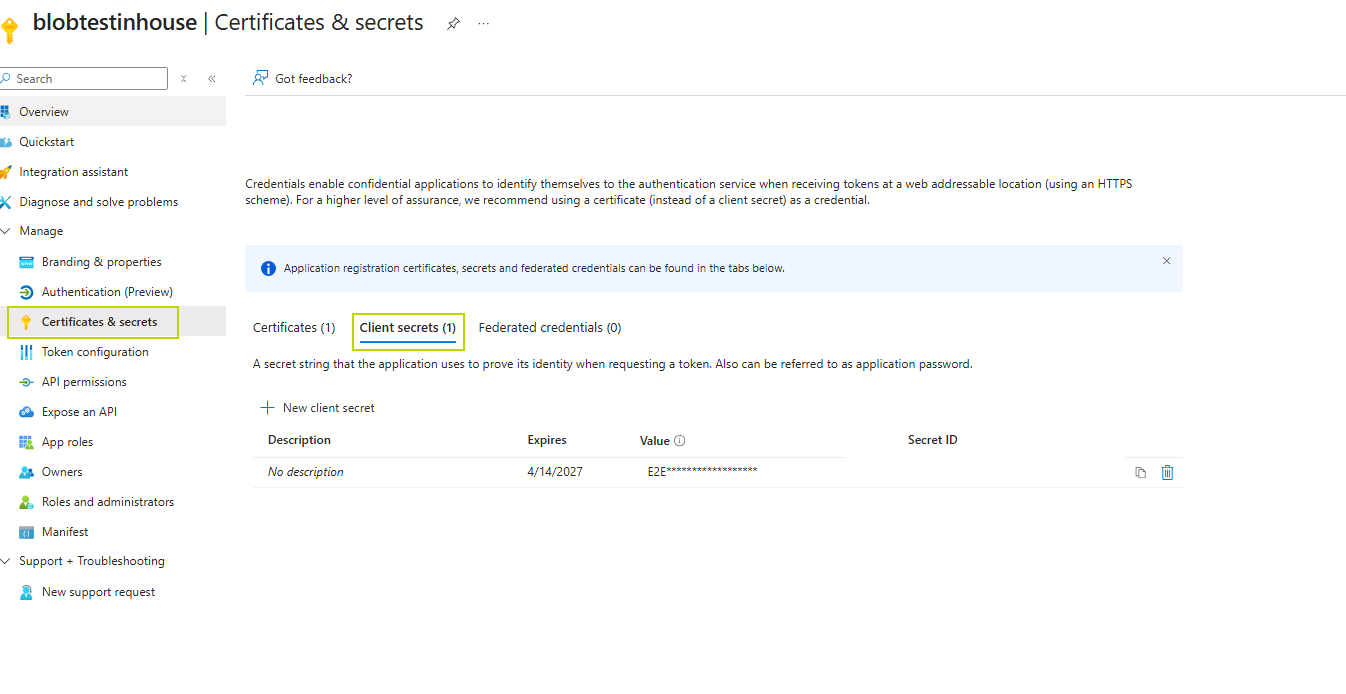
A new client secret has to be created in the Azure portal.
-
Go to the application (SPN) created in the first step.
-
Go to 'Certificates & secrets'.
-
Click 'New Client Secret'.

|
Note: Make sure to save the secret value immediately since it cannot be retrieved later. |
Configuring Environment Variables
Environment variables have to be added on the in-house VM.
-
Right-click Windows icon
-
Select System
-
Go to Advanced system settings
-
Open Environment Variables and add the following variables:
CopyAZURE_CLIENT_ID=<Application (client) ID>
AZURE_TENANT_ID=<Directory (tenant) ID>
AZURE_CLIENT_SECRET=<Client Secret Value>
Authentication using a Certificate
To use a certificate for authentication a certificate has to be created and uploaded to the Azure environment.
Creating a Certificate
Please check the relevant Microsoft documentation for information on how to create a certificate. For production use it is recommended to use a signed certificate.
https://learn.microsoft.com/en-us/entra/identity-platform/howto-create-self-signed-certificate
Uploading the Certificate
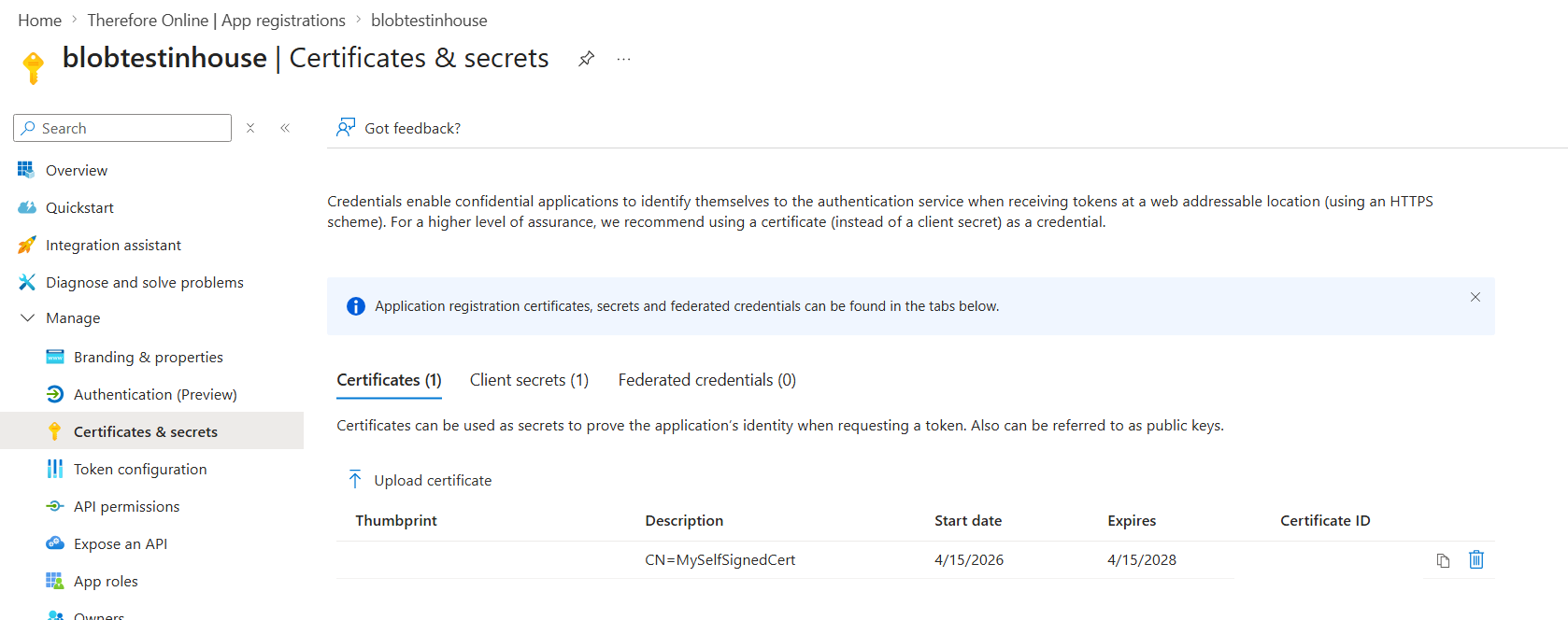
In this step, the certificate has to be added to the Azure environment.
-
In the service principal application go to 'Certificates & secrets'.
-
Add the generated .cer file as a certificate
Configuring Environment Variables
Environment variables have to be added on the in-house VM.
-
Right-click Windows icon
-
Select System
-
Go to Advanced system settings
-
Open Environment Variables and add the following variables:
CopyAZURE_CLIENT_ID=<Application (client) ID>
AZURE_TENANT_ID=<Directory (tenant) ID>
AZURE_CLIENT_CERTIFICATE_PASSWORD=<Password that was used during certificate creation>
AZURE_CLIENT_CERTIFICATE_PATH=<path to certificate (e.g. C:\cert.pfx)>
Configuration in Therefore™
The following steps have to be completed in Therefore™ for both possible authentication methods.
Restarting the Therefore™ Server
To complete this step, restart TheServer service.
Configuring the Storage Device
This step involves configuring the configured blob storage as a storage device in Therefore™ Solution Designer.
-
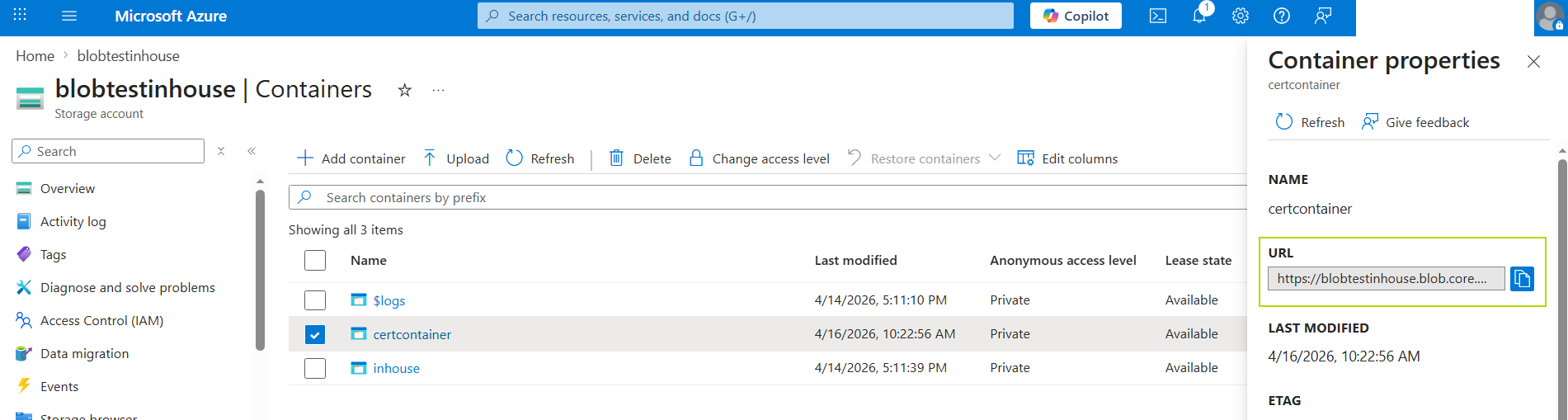
To prepare for this step, the path has to be retrieved from the Azure portal.
- Go to the storage account
- Open the blob container that should be used
- Open the container properties and copy the container URL to clipboard
-
Go to Storage > right-click 'Devices' > select 'Add Device'.
-
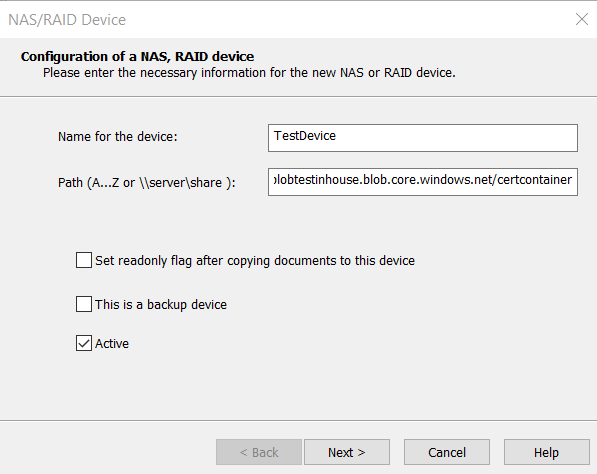
The NAS/RAID device dialog opens. Give the device an intuitive name and add the path.