Assigning Roles on Therefore™ Objects
Role-based access can be configured for most Therefore™ objects (cases, folders, categories, workflows, etc.). If there are objects that are lower down in the hierarchy they will inherit these permissions.
-
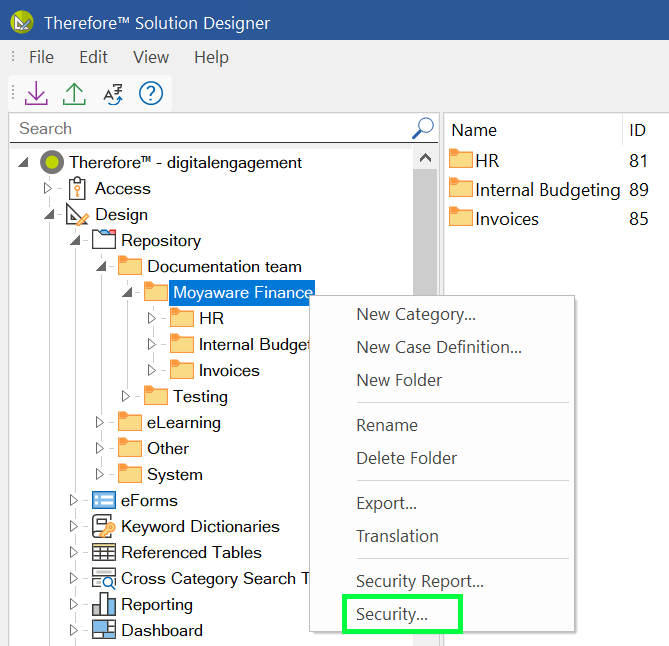
Right-click on any Therefore™ object and select 'Security' to configure role-based access for this object. In this example, all categories under the 'Moyaware Finance' folder will inherit the permissions configured for that folder.
-
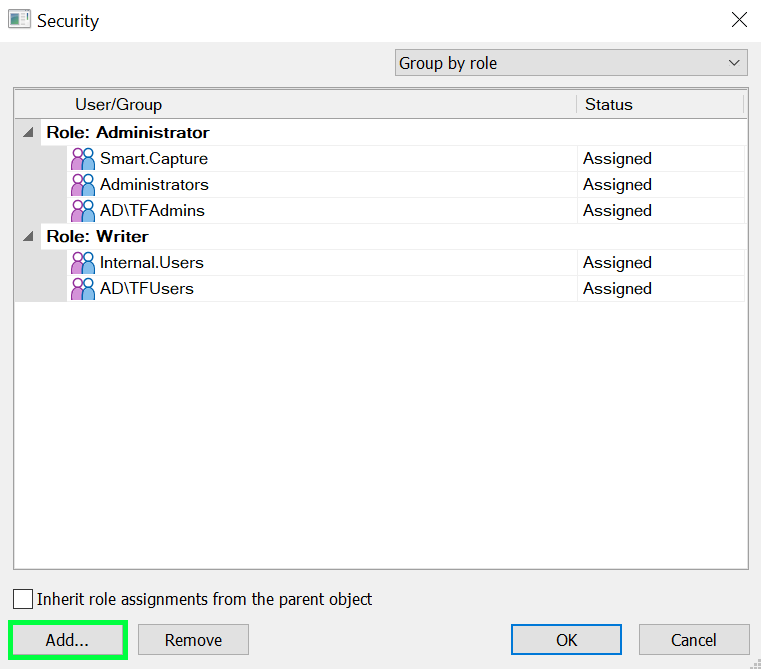
In the 'Security' dialog, click 'Add' to assign a new role to the Therefore™ object. The 'Role Assignment' dialog will open.
-
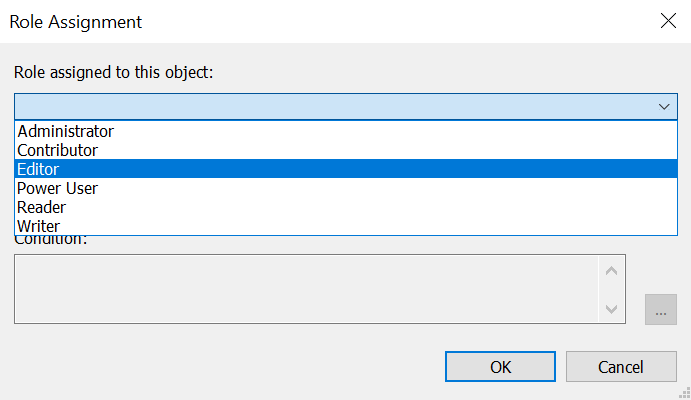
In the 'Role Assignment' dialog, open the drop-down menu labeled 'Role assigned to this object' and select the role that you wish to assign.
-
Click the ellipsis button in the field labeled 'User/Group' to open the 'Select Users or Groups' dialog. Find the users or groups that should have this particular role on this Therefore™ object. Multiple selections can be made. Click on the user or group and click 'Select'.
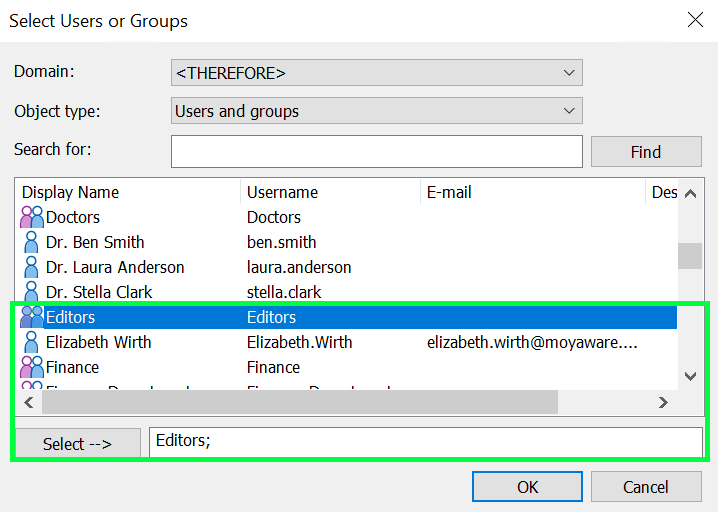
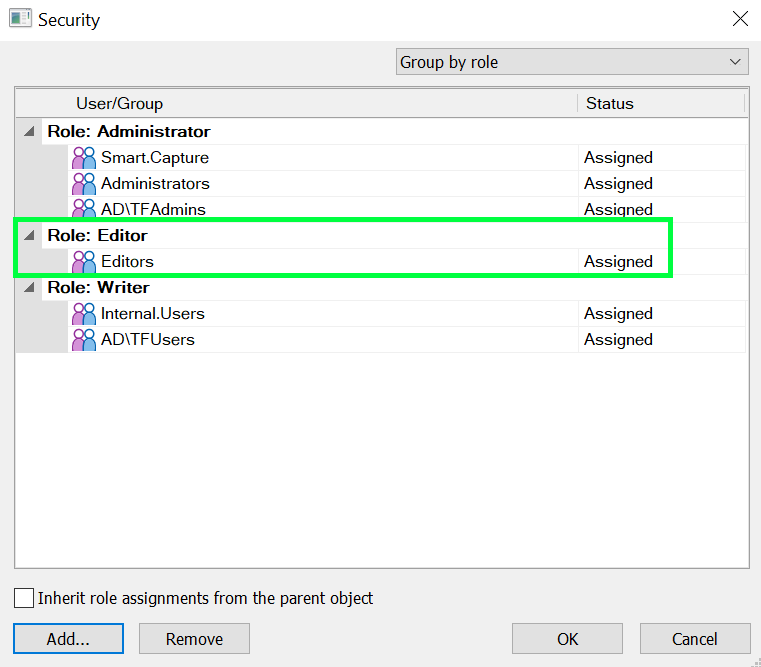
The selected users and groups and their role assignment can now be viewed in the Therefore™ object's role assignment dialog.
Conditions can be used to refine permissions on a Therefore™ object or on objects further down in the hierarchy without breaking inheritance. Conditions can be defined in the 'Role Assignment' dialog.