Setting up Web Access
Administrators on Therefore™ On-Premises can configure web access for their Therefore™ system.
By default the URL for Therefore™ Web Access is:
http://servername/TWA
As a general feature Therefore™ Web Access supports single sign-on for Windows users, but this needs to be supported by the browser too. Otherwise a customizable login page is displayed before the application can be accessed.
The user is asked to enter their username and password (see table below).
Furthermore, for access to be granted, a user license is required.
| User Type | Username |
|---|---|
| Active Directory or LDAP | domain\username |
| Windows workgroup | servername\username |
| Internal Therefore™ user | username |
WebDAV folder configuration
In order to use this feature in Therefore™, the WebDAV folder needs to be configured first.

|
Note: Server Manager, a Windows server administration tool, must be installed in order for these steps to work as intended. |
Configuration in Server Manager
-
Go to Control Panel > Programs and Features > 'Turn Windows features on or off'. A dialog titled Add Roles and Features Wizard will open.
-
In the Wizard, click on 'Next' until the Server Roles section is displayed.
-
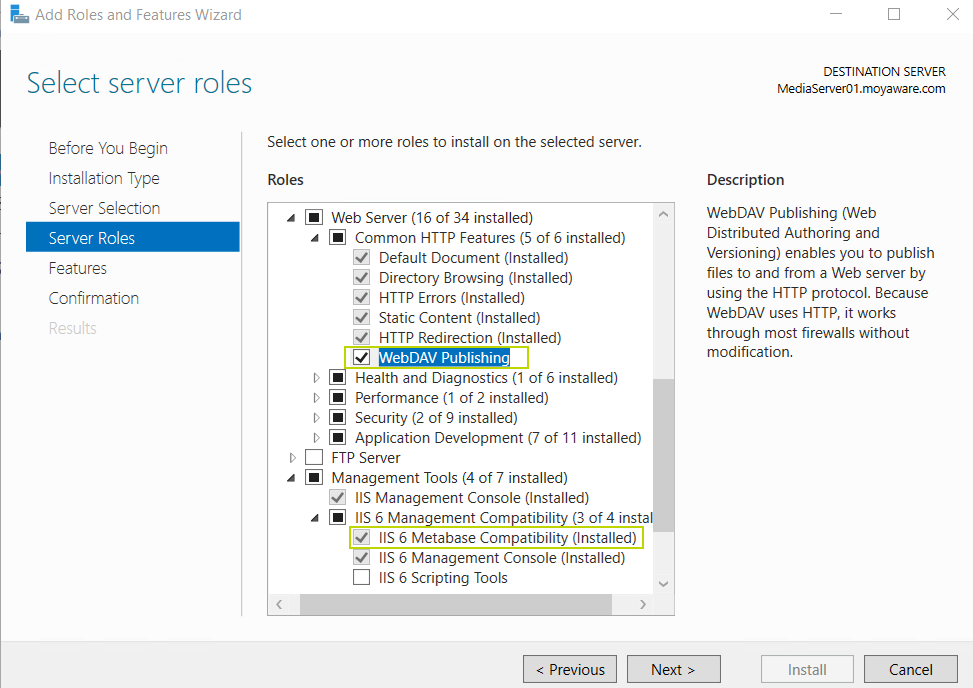
In the Roles dialog, expand the first Web Server (IIS) item, then the Web Server sub-item, and finally the Common HTTP Features section. Check the 'WebDAV Publishing' option.
-
Also under the Web Server (IIS) item, expand Management Tools. Expand IIS 6 Management Compatibility and make sure the option labeled IIS Metabase Compatibility is checked.
-
Click on 'Next' until the you get to the Confirmation section, then click 'Install'. Close the Wizard when the installation is complete.
Configuration in IIS Manager
-
Go to Control Panel > Administrative Tools > Internet Information Services (IIS) Manager.
-
In the IIS Manager, in the left pane (Connections), expand the server item > Sites > Default Web Site. The Default Web Site Home is displayed.
-
Double-click on the WebDAV Authoring Rules icon and then click on 'Enable WebDAV' in the Actions panel on the right.
-
In the same panel, click on 'Add Authoring Rule'. In the Add Authoring Rule dialog, select the following options:
- Allow access to: All content
- Allow access to this content to: All users
-
In the left pane (Connections), expand TWA > Client and click on the WebDAV folder. The WebDAV Home is displayed.
-
Click on the WebDAV Authoring Rules icon. Select the existing Authoring Rules and click on Edit in the Actions panel on the right.
-
In the Edit Authoring Rule dialog, change the Permissions section by granting Read, Source and Write permissions.
-
In the left pane (Connections), select the server item and click 'Restart' in the Actions panel on the right.