System Variables
It is possible to define Therefore™ system-wide variables, which can be managed centrally and used in scripting, REST Calls and workflow conditions. With this feature, users have a more reliable and efficient way of updating any calls on third party services. By setting a system variable to be a third party service, in the event of a change, instead of having to manually update every script, REST Call or workflow calling on this third party, only the system variable needs to be updated.
System variables can be managed in the Therefore™ Solution Designer. Right-clicking on the 'System Variables' node, or any of the folders contained in it, under 'Design' opens a context menu.
New System Variable
Opens the 'New System Variable' dialog, allowing the user to define a new system variable.
Variable Name
Enter a name for the variable. This will be used to call upon the variable.
Variable Value
Enter the value to be stored in this variable.
Variable Type
Select which type of variable this is from the drop-down menu. Text (Unicode text up to 3000 characters), Integer (32 bit unsigned), and Decimal.
New Folder
Creates a new sub-folder under the main System Variables node or the currently selected folder.
While the 'System Variables' node or a sub-folder is selected, users can see a list of the system variables contained within. Right-clicking a system variable opens a context menu.
Open System Variable
Opens the 'Edit System Variable' dialog, allowing then user to make changes to the system variable. Alternatively double-clicking a variable opens the dialog.
Delete
Deletes the selected system variable. Before proceeding a message will ask the user to confirm.

|
|
Using System Variables
Scripting
It is possible to load system variables into the code by using the following function:
-
GetSystemVariable (VariableName) - this function returns the value held by the variable. If the variable does not exist, an error is shown.
Workflow Conditions
System variables can be used when setting up transition conditions. Administrators can select variables just as they can select macros. The following use cases are currently supported:
-
Calling the variable with [$var_name] to replace a column name, table name, number value with the value held by the variable.
-
Using 'String' type variables to compare database values with system variables.
-
Checking whether or not a corresponding document exists in a different category with [$CategoryTable(CtgryID)]. 'CtgryID' can be specified using a system variable of type string by replacing it with the variable name.
Workflow Tasks
System variables can be used in workflow tasks such as REST Call, Update Index Data, etc. This use is similar to the use in Scripting where a value held by a variable can be called.
As an example, the Update Index Data task can assign a new value to an index data field with the GetSystemVariable function.
In the case below, a company with offices in multiple locations is closing one of those and moving its employees to another address. By storing the different office addresses as a system variable, they can update their records on each employee to reflect the correct address by using the Update Index Data task and calling the system variable.
The company keeps a variable for the address of each office.

Every employee in the Edinburgh office should be moved to the Croydon office. For this purpose, a workflow with the Update Index Data task has been configured to update the 'Department Address' index data field, with the 'GetSystemVariable' as an assignment.
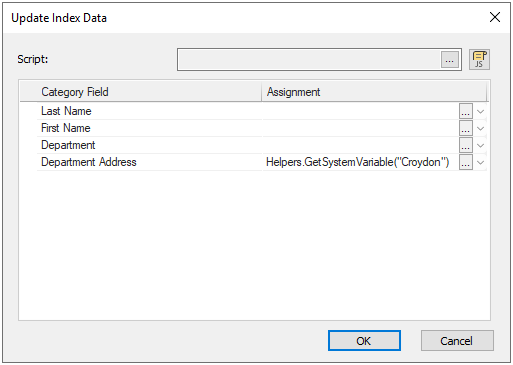
A user can now select the relevant documents in the Therefore™ Navigator and start the workflow with the Update Index Data Task.

Once the workflow task is complete, the field the assignment was configured for will be updated.
