Webhooks
Therefore™ supports webhooks allowing real‑time, event‑driven integrations with third‑party systems.
The framework enables creating or updating documents and cases, triggering workflows, and waking up system components such as Therefore™ Content Connector or Referenced Web Services based on incoming webhook calls.
For an example of a webhook configuration please refer to the following page:
Advanced topics related to webhooks, such as adding a URL reservation and instructions on testing the HMAC signatures with Postman can be found in the Additional Resources:
External link to the webhooks AR page
Requirements
-
In order to use webhooks, the XML service needs to be installed from the Therefore™ Setup. It must be reachable to the third-party provider sending the webhook.
-
The webhook payload must be Json in UTF-8
-
Any action that modifies data on the Therefore™ system requires the webhook to be signed with HMAC-SHA256. Specifically, this requirement applies to the Create New Case / Document and Update Index Data action.
Webhook Settings
|
|
Right-clicking on the Webhooks node in the Therefore™ Solution Designer or opening an existing webhook by double-clicking on it opens the Webhook dialog including the settings detailed below. Right-clicking on existing webhooks allows the user to delete the webhook or edit the RBAC configuration. |

Webhook dialog
This dialog allows the user to configure the webhook signature and webhook action.
It is not possible to add a response body. The response will always be empty.
HTTP status codes will be 200 OK, 400 Bad Request or 401 Unauthorized. It is not possible to configure HTTP status codes.
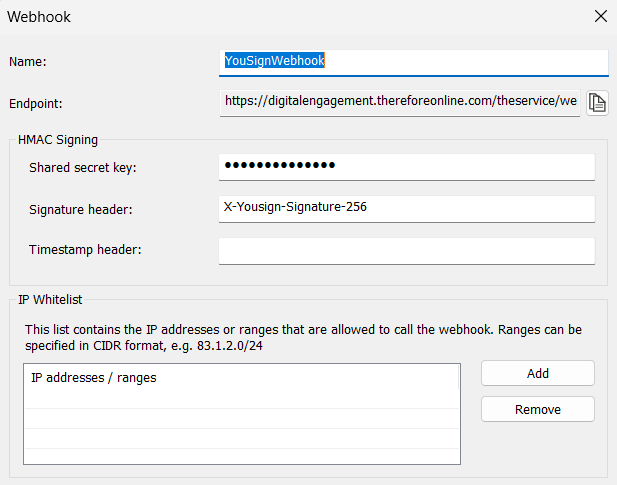
Name
Enter an intuitive and descriptive name for the webhook.
Endpoint
This is the endpoint in Therefore™ webhook calls should go to. While configuring webhook calls from a third-party service this endpoint has to be shared with third-party service provider so they know where to direct webhook calls. The webhook endpoint URL is not customizable.

|
Copy to Clipboard The endpoint URL can be copied to the user's clipboard by clicking this button located on the right side of the Endpoint URL field. |
HMAC Signing
Unsigned webhook calls can not modify data - they can only be used as wake-up calls to start the Therefore™ Content Connector, workflows, or Referenced Web Service. For verification, an HMAC‑SHA256 signature that is verified by auto-detection is needed.
For examples of valid HMAC signatures please refer to the following page:
Shared secret key
A secret key provided by the third-party service webhooks to this endpoint will originate from is to be entered here. The entered secret is not visible to the user.
Signature header
Enter a signature header name into this field.
Timestamp header
An optional timestamp header can be entered into this field.
When a Timestamp is used it is compared to the current server timestamp. If the difference is more than 5 minutes the webhook will not be processed. The allowed time difference is not configurable.
IP Whitelist
Click the 'Add' or 'Remove' buttons next to this field to specify IP addresses or ranges in CIDR format that are allowed to call the webhook. This IP whitelist is enforced by Therefore™.
Only IPv4 is supported by the whitelist. IPv6 is not supported. If a whitelist is configured, the webhook can no longer be used from any IPv6 address.
Actions
Configure actions for Therefore™ to execute once new information is received via a webhook call. Conditions are processed top to bottom. Each webhook can only trigger one action. Configured actions are listed in the field.
Actions Icon Toolbar
By clicking a toolbar button users can create new actions or edit and move existing actions.
| Icon | Description |
|---|---|

|
Add a new action. |

|
Edit an existing action. |

|
Delete an action. |

|
Move the action request up in the list. By default, the calls are executed top to bottom. |

|
Move the REST request down in the list. |
Clicking the New Action button opens a dropdown menu the user can select the desired action from. The available actions are listed below. Selecting an action opens a dialog where the specifics can be configured.
Only one action can be executed per webhook. Even if multiple actions are configured, only the first action for which the filter matches and that is not skipped is executed.
New Action - Menu Options
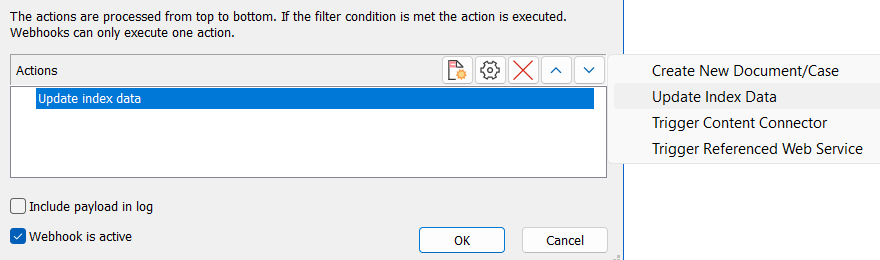
Create New Document / Case
Configure an action creating a new document or case when information is received through the webhook. This action will create an empty document - meaning a document containing no files - or an empty case.
Opens the New Document / Case Action dialog where this action can be configured.
New Document / Case Action
For this action, the tabs Filter, Update, and Start Workflow are available.
Update Index Data
Configure an action updating the index data of an existing document when information is received through the webhook. Opens the Update Index Data Action dialog where this action can be configured.
Update Index Data Action
For this action, the tabs Filter, Search, Update, and Start Workflow are available.
Trigger Content Connector
Configure an action waking up the Therefore™ Content Connector when information is received through the webhook. Opens the Trigger Content Connector Action dialog where this action can be configured.
Trigger Content Connector Action
For this action, the tabs Filter and Content Connector are available.
Trigger Referenced Web Service
Configure an action waking up the Therefore™ Content Connector when information is received through the webhook. Opens the Trigger Referenced Web Service Action dialog where this action can be configured.
Trigger Referenced Web Service Action
For this action, the tabs Filter and Referenced Web Service are available.
Actions Dialog - Tabs
In this tab, users can configure a filter for specific values of Json attributes so the specified action can be executed when this value is identified in the payload of incoming data from a webhook call.
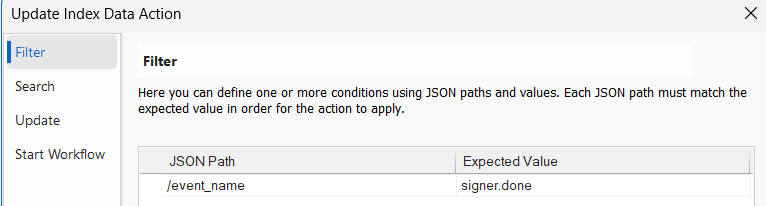
The webhook filter is based on Json pointers. Supported Json data types are:
-
Text
-
Integer numbers (not decimal numbers)
-
Bools
-
Null
Any other data type is not supported.
For samples of valid webhook filter configurations please refer to the following page:
Json Path
The property name is entered into the column labeled Json path. The Json path is case sensitive. The property name is to be entered in the following format, starting with a slash and without quotes:
/propertyExpected Value
The expected JSON value is entered into this column. The Expected Value is not case sensitive. The following format should be used, without quotes:
expected.valueAdd/Remove
Use the Add and Remove buttons to change the amount of rows in the Filter table.
Test filter
Use this button to test the filter against JSON data loaded from a file or from clipboards. This can be used to check the filter against a JSON response example copied from the third-party service provider's documentation.
In this tab, an indexing profile for the new category or case created when information is received through the webhook can be created.
Target category / case definition
Specify the category or case definition the new document or case should be created in. Clicking on the ellipses button opens a dropdown menu allowing users to select a category or case definition from the repository.
Script
A script can be created which will be executed before the execution of the field assignments.
Auto-append mode
The auto-append mode for documents saved with this profile can be defined. Check the reference page below for more information on auto-append.
Assignment
Once a category has been chosen, click on the drop-down arrow of the index field that should be set. If the index field value should come from the original document that was sent for signing, then specify the Existing document category and select the index field from the list.
Load Json...
Clicking this button opens a dropdown menu with the options '...from File' and '...from Clipboard' that allows the user to load a Json response that can be used to configure assignments.
In this tab, criteria to find the Therefore™ document that should be updated with information received through the webhook can be specified.
It is not possible to use any search operators such as '<', '>' or any other search related operators. The search exclusively uses equality ('=') comparison.
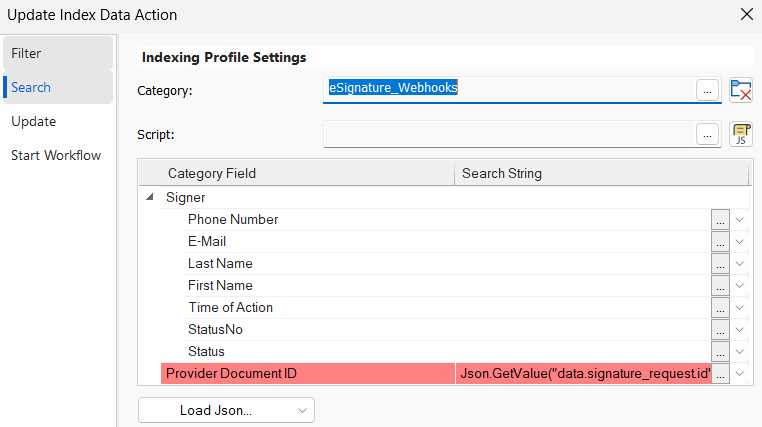
The Search tab settings are similar to the Indexing Profile tab settings.
Category
Use the ellipses button to pick a category that should be search for a document to be updated.
Script
Add a search script that will be executed before assignments are processed.
Add Assignment
Right-click on the whitespace in the Assignments table to see this option. Clicking it opens the Select Fields or Categories dialog in which users can select Therefore™ objects from the Folder to the Field level to add assignments for. Check the empty box next to a Therefore™ object to select it. Selecting a category populates the table with one row for each index data field of the category.
Category Field
This column lists the index data fields of the selected category.
Search String
In this column the search strings for the respective category fields can be defined. Use assignments or variables to find the document with the index data field value the search should look for.
Load Json
Clicking this button opens a dropdown menu with the options '...from File' and '...from Clipboard' that allows the user to load a Json response that can be used to configure search assignments.
In this tab, users can configure assignments to update index data fields when information is received through the webhook.
The Update tab settings are similar to the Indexing Profile settings.
Script
Add a script that will be executed before assignments are processed.
Category Field
This column lists the index data fields of the selected category.
Assignment
In this column the assignments for the respective category fields can be defined. Use assignments or variables to update the document with new index data field values received through the webhook.
Load Json
Clicking this button opens a dropdown menu with the options '...from File' and '...from Clipboard' that allows the user to load a Json response that can be used to configure assignments for updating fields.
In this tab, users can set a workflow to be started with the configured action. The webhook serves as a wake-up call for the workflow.
None
No workflow process will be started with this action.
Default
The category default workflow process will be started with this action.
Custom
Enables a dropdown menu in which the user can select one of the workflows that can be started for this category.
In this tab, users can associate the action with a Content Connector source that should be polled when information is received through the webhook.
Only active Content Connector sources will be polled.
There is a non-configurable time shadow of up to 1 minute from receiving the webhook to the source checking for new pending items. There may be further delays if the content connector currently already processes sources or is busy otherwise.
Content Connector source
Select a Content Connector source from the dropdown menu to associate it with this action.
Trigger Referenced Web Service
In this tab, users can associate the action with a Referenced Web Service that should be synchronized when information is received through the webhook.
This is an immediate action. If a synchronization is currently running there is a wait for a maximum of 10 seconds for the current synchronization to finish before it is triggered for the specified referenced web service again.
Referenced Web Service
Select a Referenced Web Service from the dropdown menu to associate it with this action.
Checkboxes
Include payload in log
Logs the body of the webhooks call for troubleshooting. Payloads for up to 10MB can be logged. If the payload size exceeds 10MB it is not logged even if 'Include payload in log' is set.
Webhook is active
Disables or enables processing.
Currently, deduplication is not supported. That means that if the same webhook is sent again it is processed again.