Activating Therefore™ for Microsoft Teams
The following settings have to be configured in the Therefore™ Solution Designer to use Therefore™ for Microsoft Teams.
Registering the Web API URL with Therefore™ Online
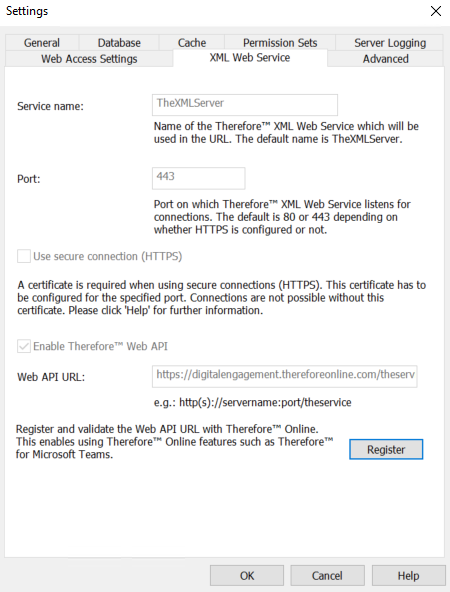
To be able to use Therefore™ Online features with a Therefore™ On-Premises system, the Web API URL must be registered with Therefore™ Online.
To do so, open the Therefore™ Solution Designer and go to the XML Web Service settings (Right-click on the Therefore™ root node > 'Settings...' > 'XML Web Service'). Set the Web API URL and click 'Register'.
The Web API on the Therefore™ server must be reachable via the internet in order for the registration to work.
Additionally, after registration the Web API on the Therefore™ server must be reachable at least by the Therefore™ Online-based service in question in order for these integrations to function.
Configuring an external user directory
-
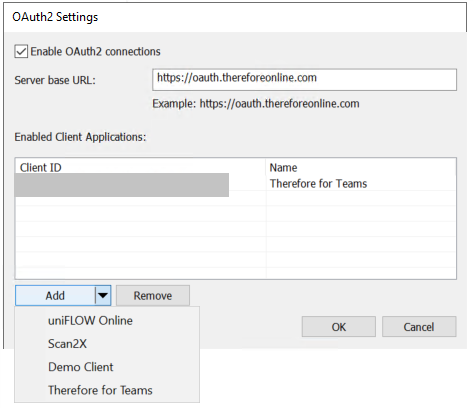
Expand 'Access', then 'Authentication' under the Repository node. Right-click on OAuth Clients, and select 'Manage'.

-
Check Enable OAuth2 connections.

-
Set the server URL to: https://oauth.thereforeonline.com
Copyhttps://oauth.thereforeonline.com -
Click the downward arrow icon next to 'Add' and select 'Therefore™ for Teams'.