Define Actions
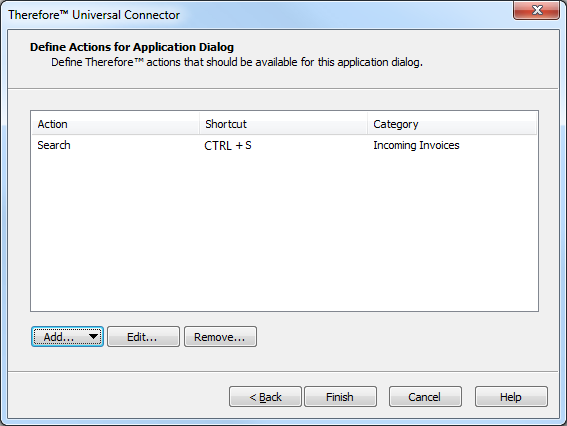
Add
New actions can be added and configured. The options are:
-
Search
-
Cross Category Search
-
Full-text Search
-
Scan
-
Scan in Viewer
-
Save
Selecting one of these will open a dialog where you can configure the shortcut key, category, mapping and additional settings for this action.
Edit
To edit an existing action, select it and then click Edit.
Remove
To remove an existing action, select it and then click Remove.
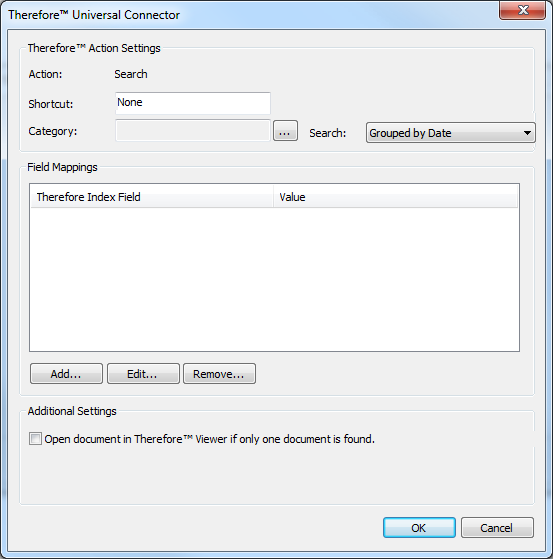
These actions share the following configuration settings:
Shortcut
Define the key combination that will trigger this action. Combinations with ALT, CTRL or SHIFT and then A-Z can be specified (e.g. ALT+C).
Category
Click the browse button to select the relevant Therefore™ category.
Search
Click to select a default search template. For example, to have a pre-defined hit-list layout. Note the search template needs to be created in the Therefore™ Navigator (see User manual for more details).
Field Mappings
Index fields that are common between the 3rd party application dialog and the Therefore™ category can be configured. Click Add to define a new pair in the field mapping dialog, Edit to change an existing one and Remove to delete a pair.
The following are actions and their respective specific configuration settings.
Search
Additional Settings
If only one document is returned in the Therefore™ Navigator, open it immediately (checkbox)
If this checkbox is selected, then if only one document is found, it will be opened directly in Therefore™ Viewer. Alternatively the Therefore™ Navigator hit-list will only be displayed and the document opened from there.
Bypass the Therefore™ Navigator altogether (only use this option if a single hit is expected)
The Therefore™ Navigator will not be opened at all.
Full-text Search
Search Text
Select the matching value from the list of fields that you defined for the 3rd party application dialog to be used as the search string in the full-text search.
Cross Category Search
Additional Settings
If only one document is returned in the Therefore™ Navigator, open it immediately (checkbox)
If this checkbox is selected, then if only one document is found, it will be opened directly in Therefore™ Viewer. Alternatively the Therefore™ Navigator hit-list will be displayed and the document can be opened from there.
Scan
Additional Settings
Capture Client Profile
Define the Capture Client Profile that should be used for the scan.
User can select a different Capture Profile (checkbox)
If this is checked, the user can select a different Capture Client Profile.
Automatically save a document to Therefore™ (checkbox)
If this is checked, the document will be saved to Therefore™ with no user interaction required.
Save
Additional Settings
Display index data dialog before saving (checkbox)
If this is checked, the user can edit the index data before saving.
Open saved document in the Therefore™ Viewer (checkbox)
If this is checked, the document will be opened in the Therefore™ Viewer after it has been saved.
Run Executable
Run Command
Enter the path for the executable that should be run when the action is triggered. You can select the clipboard text itself and add path macros like <ProgramFiles>.