Configuration
Before using the Therefore™ Release script you must properly configure the Tungsten Capture Administration Module.
-
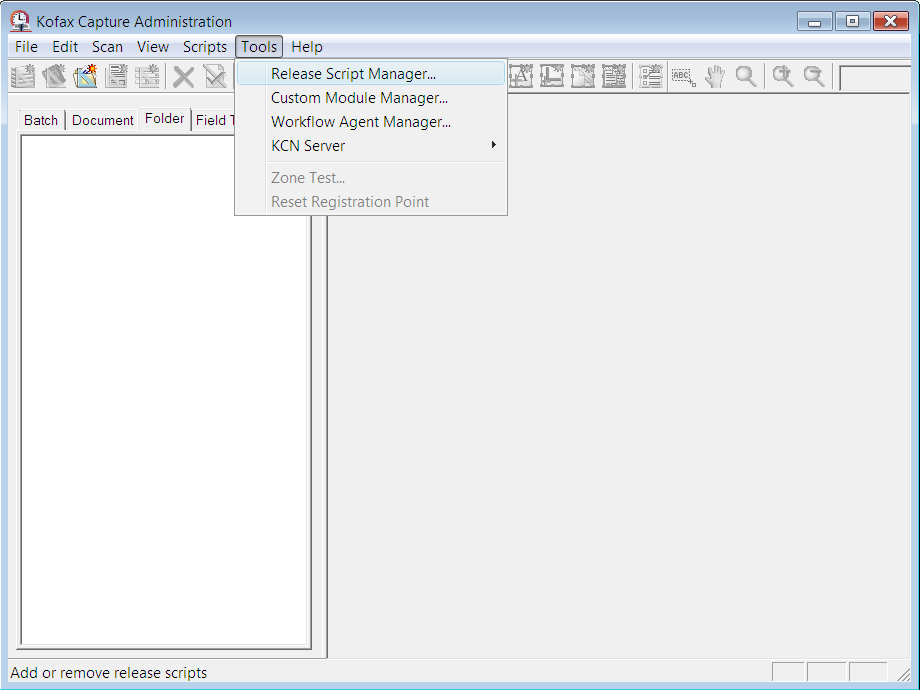
Open the Tungsten Capture Administration Module and in the Tools menu select the Release Script Manager menu item.
-
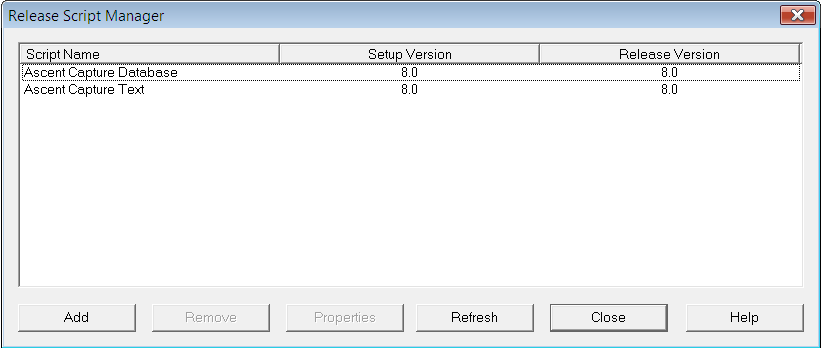
In the Release Script Manager click Add and select ThereforeAscentRelease.inf file. By default the script is available in 'C:\Program Files\Therefore'
-
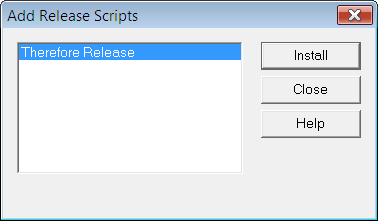
Next select Therefore™ Release and click the Install button. This adds Therefore™ Release to the list of available release scripts in Tungsten Capture.
-
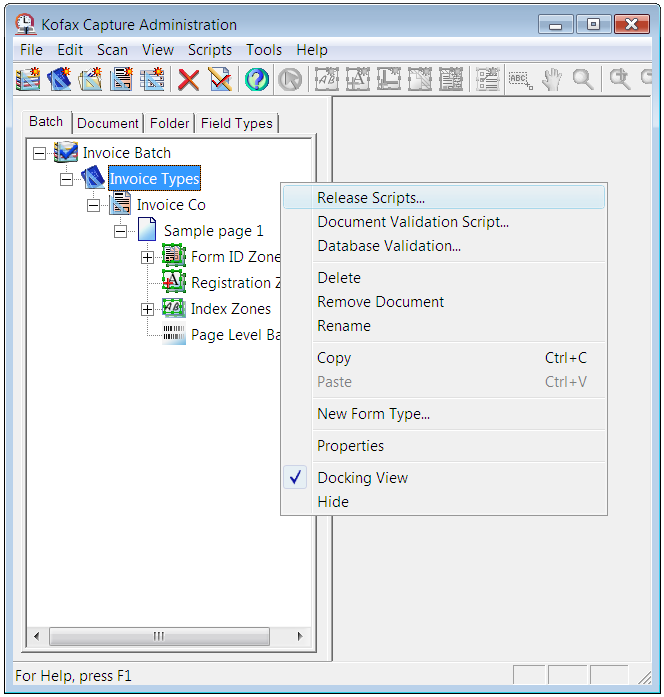
In the Tungsten Capture Administration application you must reference the Therefore™ Release script from the Tungsten Capture Document Class definition. Right-click the name of the Document Class and select the 'Release Scripts' menu item from the context menu.
-
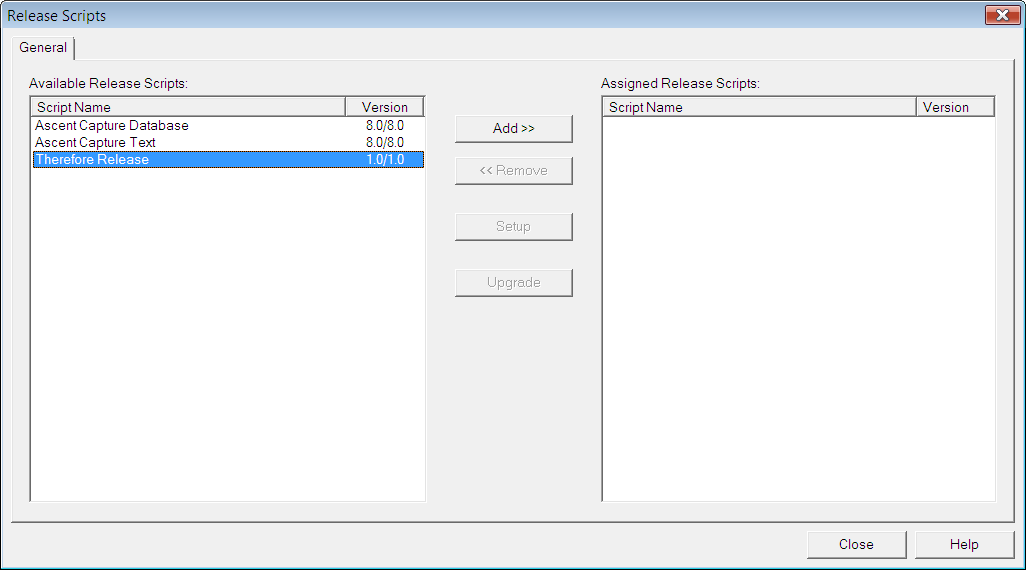
Select the Therefore™ Release script and use the Add>> button to move it to the Assigned Release Scripts section.
-
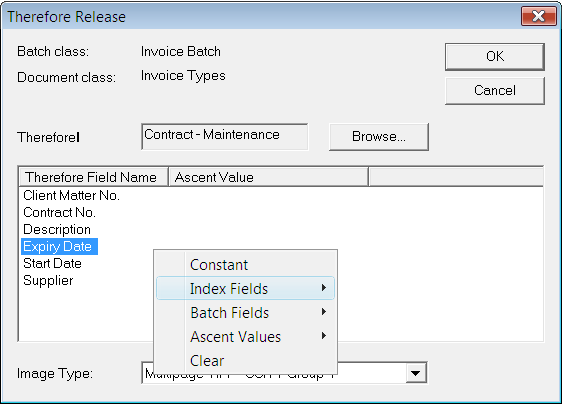
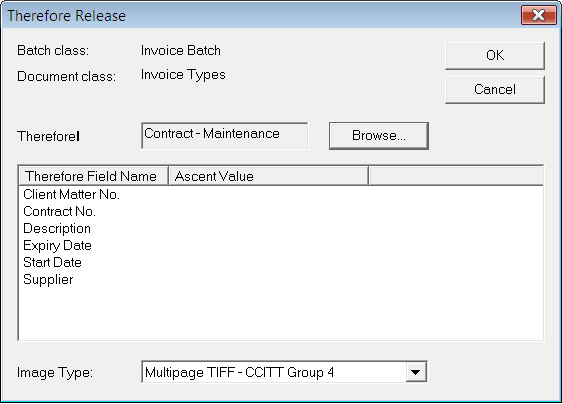
Select this newly assigned script and click Setup. A Therefore™ Category can be associated with the Tungsten Capture Document Class by clicking on the Browse button. This defines that when a document is scanned by Tungsten Capture it will be stored in the specified Therefore™ Category.
-
Finally the Therefore™ Category’s index fields are mapped to appropriate Tungsten Capture index fields. After saving these settings, the Therefore™ Release script is ready to use by Tungsten Capture.